Guide | Hardware Wallets | 7 min read
Setting Up the Coldcard MK4: Step by Step Without Noise
July 2026By Mario
Important, August 2026
A bug has been found in the Coldcard firmware that causes seeds generated on the device prior to version 5.6.0 to be weaker than intended. Be sure to update your Coldcard MK4 to version 5.6.0 or later before generating a seed. If you’ve already generated a seed, you’ll need to create a new one: updating the firmware alone will not fix an existing seed.
What if you have a Coldcard MK4 lying around, but right from the first boot-up, you get the feeling that this isn't a device that forgives mistakes? That feeling is right. The MK4 isn't built to be user-friendly. It's built to keep your keys offline, even when you're in a hurry.
I love that. Not because it’s easy, but because it’s fair. A Coldcard forces you to work carefully, write down your seed phrase properly, and think about what self-custody really means. Crypto is noise. Tools like this aren’t.
This guide shows you how to set up the Coldcard MK4, from the initial startup to a fully functional wallet. The sales context has changed, however: the MK4 is not the current Coldcard model being sold here. If you're looking for a working model today, you're better off checking out the Coldcard Q. For other options, you can also hardware wallet's product line view.
What you lay out
Before you begin, put this down first:
- Your Coldcard MK4
- pen and paper
- a quiet place without cameras, screenshots or distractions
- optionally a microSD card for air-gapped workflows
- optionally a 9V battery if you want to work completely offline
Sounds exaggerated? No. This is where you build the foundation of your wallet. If you do that half-heartedly, it will come back to haunt you later.
What exactly is a Coldcard?
The Coldcard is a bitcoin-only hardware wallet from Coinkite. “Bitcoin-only” means the device doesn’t try to be everything at once. No altcoins, no bells and whistles, no compromises. Just managing keys and securely signing transactions.
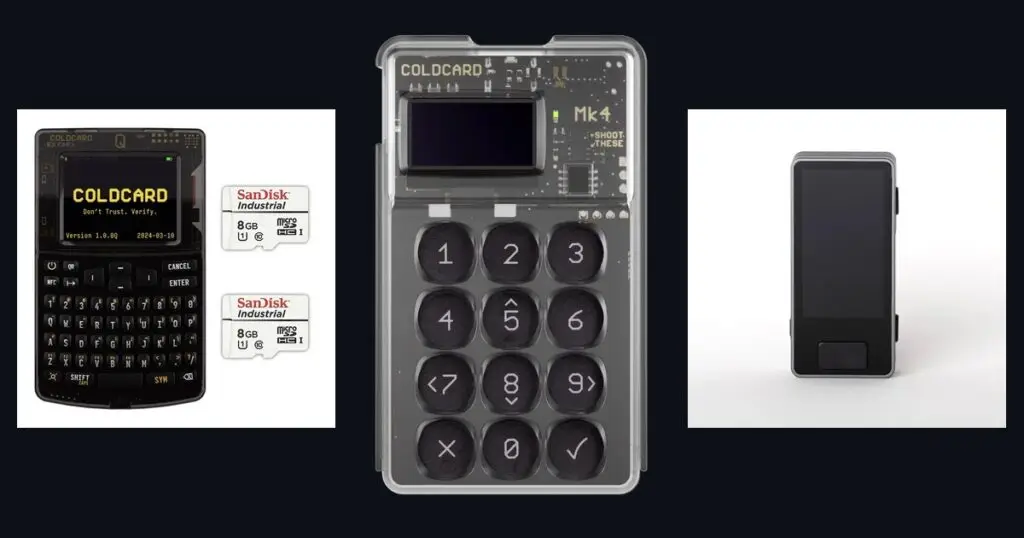
The MK4 features a numeric keypad, microSD, USB-C, and NFC. The NFC feature is real, but it’s not the focus of the initial setup. According to the Coldcard documentation, NFC on the MK4 is available for features such as `NFC Push Tx`, as long as NFC is enabled in the settings.
Setting Up the Coldcard MK4 in 7 Steps
Step 1: start up and take a look around calmly
Connect the MK4 via USB-C, or use a 9V battery if you want to start it up without a computer. The Coldcard startup screen will appear. Don't just click through it out of habit. Take a moment to see exactly what it's asking you to do.
If you are using a second-hand or old device, first check whether you can logically explain where it came from. When in doubt: do not use it for serious amounts of money until you are sure what you are holding.
Step 2: choose your PIN in two parts
The Coldcard doesn't ask for a regular PIN, but rather a prefix and a suffix. First, you enter 2 to 6 digits. Then, the wallet displays two anti-phishing words. Only if those words are correct will you proceed to the second part of your PIN.
That's not a gimmick. The official Coldcard documentation states that these words are unique to your device and your PIN combination. If you see any unexpected words, stop. Don't keep going, and don't guess.
Step 3: check the anti-phishing words
This is the moment that many people rush through. Not here, though. Look at the two words and remember them. Those words will help you recognize that you’re truly working on your own Coldcard.
The logic is simple: it is not the speed that counts, but the control. If the words deviate, you press cancel and start over.
Check your firmware version first
Before you create a seed, your device must be on version 5.6.0 or newer (or 6.6.0X if you use Edge). On older versions the Coldcard generates a seed that is weaker than intended, and that cannot be repaired afterwards.
You find the version on the device under Advanced/Tools, Upgrade, Show Version. If it shows anything older, update first before you continue.
Step 4: Create a new wallet
After entering your PIN, select the option to create a new wallet. The Coldcard will then generate your seed internally. That’s how it should be. You don’t want a computer, phone, or cloud tool to interfere with this process.
Some users add extra entropy with dice rolls. That is possible, but for most people, the standard flow is fine. More importantly, you make a proper backup afterwards.
Add your own randomness with dice (recommended)
The Coldcard generates a random seed by itself, and on updated firmware that is sufficient. Still, we recommend adding your own randomness, quite literally by rolling dice.
Why: when your own dice are involved, you no longer depend entirely on the device's random number generator. In the July 2026 incident, that turned out to be exactly what made the difference. People who had used dice were not affected.
- When creating the seed, choose the dice option instead of the default option.
- Roll an ordinary die and enter every roll. At least 50 rolls, and roll every single one of them. Half measures do not count.
- Do this alone, with no cameras nearby and nobody watching.
Step 5: write down your seed phrase
Now the 24 words will appear on the screen. That is the core. Write them down on paper in the exact order. Not in a notes app. Not in a password manager. Do not quickly take a photo because you want to copy it out “more neatly” later.
This is also the point at which the Coldcard learning curve is just right. It forces you not to neglect the basics out of convenience. If you want a more sustainable backup solution later on, you can always consider steel. For now, as you’re considering your purchase, I’m deliberately keeping that route on the Coldcard Q and the hardware wallet category, because those are the current in-stock routes.
Step 6: verify your words
After you've written it down, the Coldcard won't just let you move on. And rightly so. You have to reconfirm words or positions. This is the moment when you discover if you've been sloppy anywhere.
If you see an error here, that is good news. Better now than in three years. Correct it immediately and only proceed when everything is correct.
Step 7: finalize and only then connect software
If your backup is correct, your wallet is technically ready. Only now do you start thinking about software like Sparrow Wallet. That order is important. First the key foundation, then the tooling around it.
For many bitcoin users, Sparrow is the logical desktop companion to a Coldcard, especially if you plan to work with PSBTs and microSD cards later on. If you eventually want a newer Coinkite model with a larger screen and greater comfort, you can use this guide to navigate to the Coldcard Q.
Common mistakes
Going through the PIN flow too quickly
These two words are not just a formality. In fact, they are one of the strongest aspects of the Coldcard approach.
Store seed digitally
Don't do it. Really, don't. Once you see it, you can't unsee it: digital convenience is usually just an extra attack surface here.
Sending large amounts of money too early
Run a small test first. Receive, check, and possibly send out again. Only after that, use it seriously.
Frequently asked questions
Is the Coldcard MK4 suitable for beginners?
Only if you are willing to learn calmly. Not because it is impossible, but because the device hides very little. That is good for safety, less pleasant for impatience.
What do those anti-phishing words actually do?
They help you verify that you are indeed using your own device and PIN prefix. The official Coldcard documentation explains that these words are uniquely derived from that combination.
Does the MK4 have NFC?
Yes. The official documentation for `NFC Push Tx` explicitly mentions the feature for Q and Mk4, provided NFC is enabled.
Do I need to use a microSD right away?
No. That is not necessary for the initial setup. For air-gapped transactions later on, it is very convenient.
Where can I buy the latest Coldcard at the Bitcoin Stuff Store?
Not the MK4. The current live route is the Coldcard Q, which at the time of writing was publicly listed as in stock.
See also
From the shop
Ready to get started?
Everything covered in this guide is in the shop.