Guide | Hardware Wallets | 10 min read
Setting up the Coldcard Mk5: from zero to your first transaction
July 2026By Mario
Important, August 2026
A bug has been found in the Coldcard firmware that causes seeds generated on the device prior to version 5.6.0 to be weaker than intended. Be sure to update your Coldcard Mk5 to version 5.6.0 or later before creating a seed. If you’ve already created a seed, you’ll need to generate a new one: updating the firmware alone will not fix an existing seed.
Update, August 2026
BitcoinStuffStore no longer sells the Coldcard. This guide will remain available for anyone who already owns a Coldcard Mk5: the setup remains the same. If you're looking for a hardware wallet now, check out the Trezor Safe 7 or the Blockstream Jade Plus.
Your Coldcard Mk5 has arrived. Now what? On your doormat lies one of the most serious Bitcoin hardware wallets there is. Setting up the Coldcard Mk5 is not rocket science, but it demands attention. Every step counts. Do it right and you will soon have full control over your bitcoin. Do it sloppily and that control is an illusion.
This is the guide. Step by step, from unboxing to your first transaction.
Unboxing and authenticity check
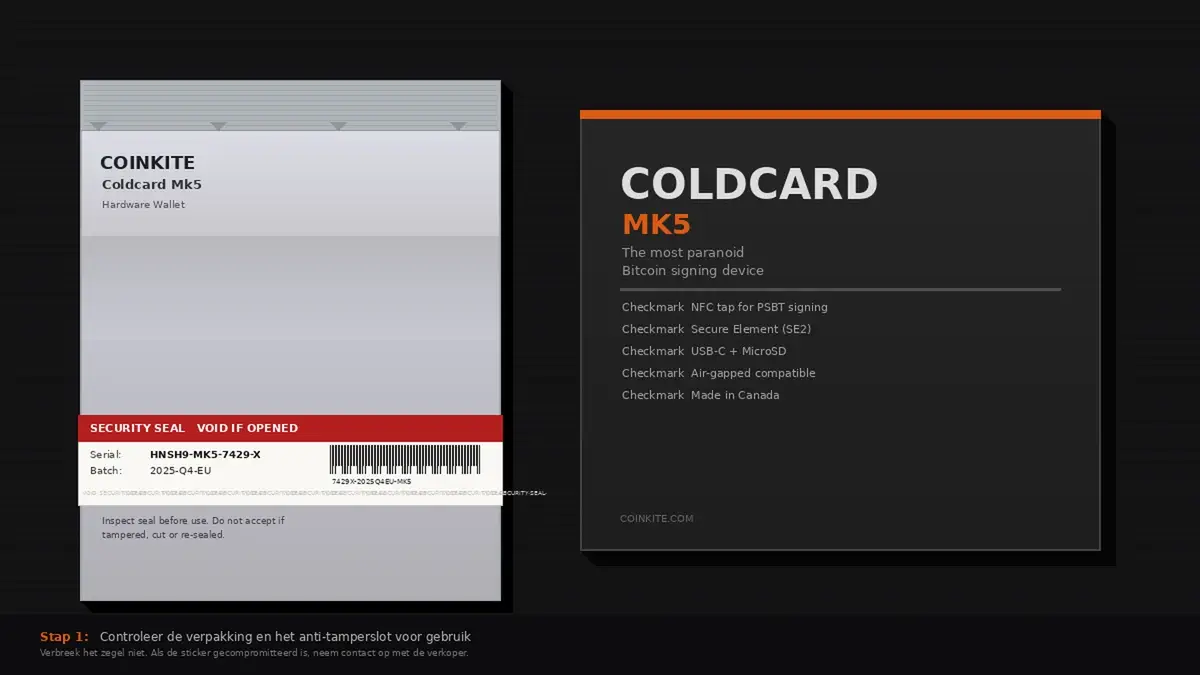
Setting up the Coldcard Mk5 starts with unboxing. The Coldcard Mk5 ships in a transparent plastic bag, closed with a numbered tamper-evident seal. Look closely at that seal before you open anything. Is it damaged or broken? Contact the shop. Do not use the device.
The package contains at least the Coldcard itself. Note: at BitcoinStuffStore a MicroSD card is an option per variant, so check your order before you start. No unexpected extras, no conspicuous retail logo on the device. That is how it should be.
On first boot you check the bag number shown on the screen and compare it with the number on the seal of the packaging. Do they match? Then the device was delivered untouched. Anyone who takes setting up the Coldcard Mk5 seriously never skips this check. You verify the firmware separately afterwards via the upgrade menu.
First boot
Connect the Coldcard Mk5 to power via USB-C. An ordinary USB charger works fine, and is safer than plugging it straight into your computer. Your computer has internet access. That is an attack surface.
The screen turns on. You see a welcome message and immediately the prompt to set a PIN. This is the point where setting up the Coldcard Mk5 really begins. Read what it says. The Coldcard uses physical buttons: four arrow keys and a centre select button. No touchscreen. Within two minutes you will understand the controls.
Setting the PIN: pay close attention
When setting up the Coldcard Mk5 you set the PIN in two separate parts: a prefix and a suffix, each 2 to 6 digits long. After you enter the prefix, the Coldcard shows two words. Those words are unique to your device and your prefix. Do the words change next time? Then something is wrong.
Write both parts of the PIN down on paper. Not in your phone, not in a notes app. If you forget the PIN, the device bricks itself after too many wrong attempts. There is no reset button and no customer service that can give you access again. When setting up the Coldcard Mk5, the PIN is the key that secures everything.
Coldcard also supports Trick PINs. They let you open a duress wallet or set up other defensive actions, among other things. For beginners this is optional; only set it up once you really understand how it works.
Generating and storing the seed: the most critical part of setting up the Coldcard Mk5
Check your firmware version first
Before you create a seed, your device must be on version 5.6.0 or newer (or 6.6.0X if you use Edge). On older versions the Coldcard generates a seed that is weaker than intended, and that cannot be repaired afterwards.
You find the version on the device under Advanced/Tools, Upgrade, Show Version. If it shows anything older, update first before you continue.
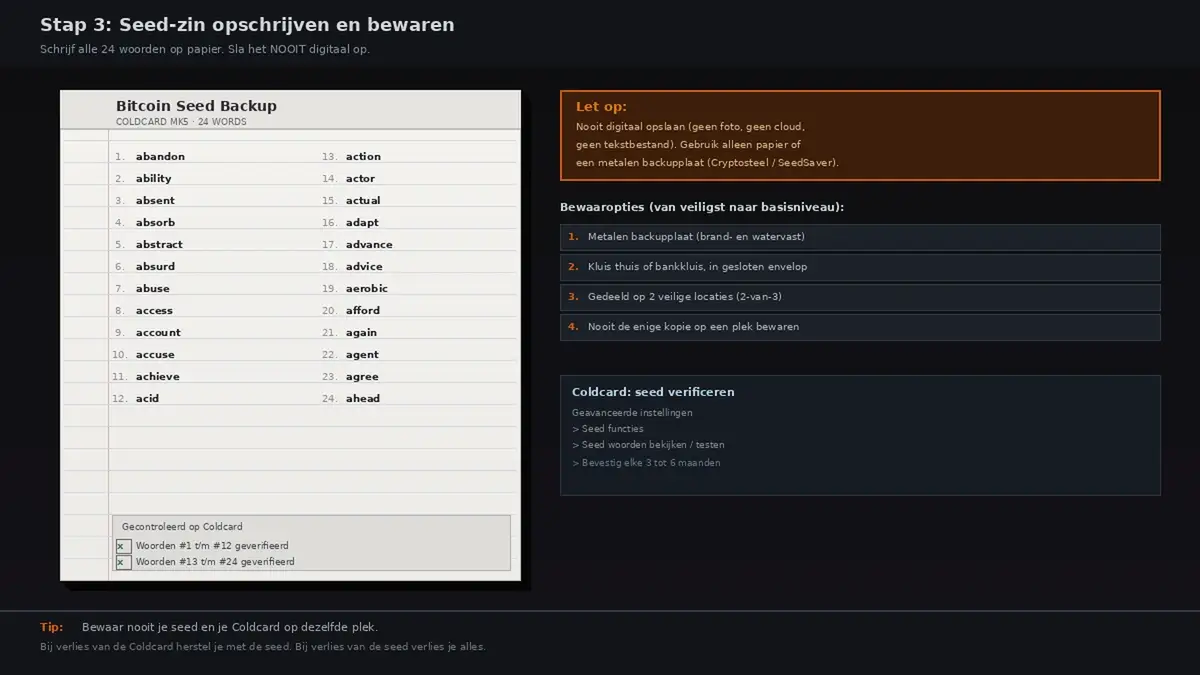
This is where things go wrong most often. Not technically, but humanly.
The Coldcard generates the seed internally, on the device itself. Nothing goes over the internet. The 24 words appear on the screen one by one.
Write them down on paper in the correct order. Never a photo. Never a note in the cloud. Never in a Word file. Whoever has the seed has the bitcoin. That is not a marketing line. That is the technical reality.
The Coldcard then asks for verification: type a few random words back in as a spot check. This is the only check on what you wrote down. Do it carefully.
Store the paper in a dry, safe place. Separate from the Coldcard. Not in the same room, if you can avoid it.
Add your own randomness with dice (recommended)
The Coldcard generates a random seed by itself, and on updated firmware that is sufficient. Still, we recommend adding your own randomness, quite literally by rolling dice.
Why: when your own dice are involved, you no longer depend entirely on the device's random number generator. In the July 2026 incident, that turned out to be exactly what made the difference. People who had used dice were not affected.
- When creating the seed, choose the dice option instead of the default option.
- Roll an ordinary die and enter every roll. At least 50 rolls, and roll every single one of them. Half measures do not count.
- Do this alone, with no cameras nearby and nobody watching.
Verify the firmware before use
Most people skip this step. That is a mistake.
On the Coldcard go to Advanced > Upgrade > Show Version and note the firmware version. Compare that version with the current release at coldcard.com/docs/upgrade. Want to verify further? Download the .dfu file from the official Coinkite page and check the SHA-256 hash and PGP signature on your computer using the supplied signatures.txt. Do they match exactly? Then your firmware is intact.
Not paranoia. Just standard hygiene as part of setting up the Coldcard Mk5.
In concrete terms: for the Mk4 and Mk5, version 5.6.0 is the minimum (Edge: 6.6.0X), for the Coldcard Q it is 1.5.0Q. Download firmware only from coldcard.com, and get there by typing the address into your browser yourself. Never click a firmware link from an email.
Setting up the Coldcard Mk5 with Sparrow Wallet
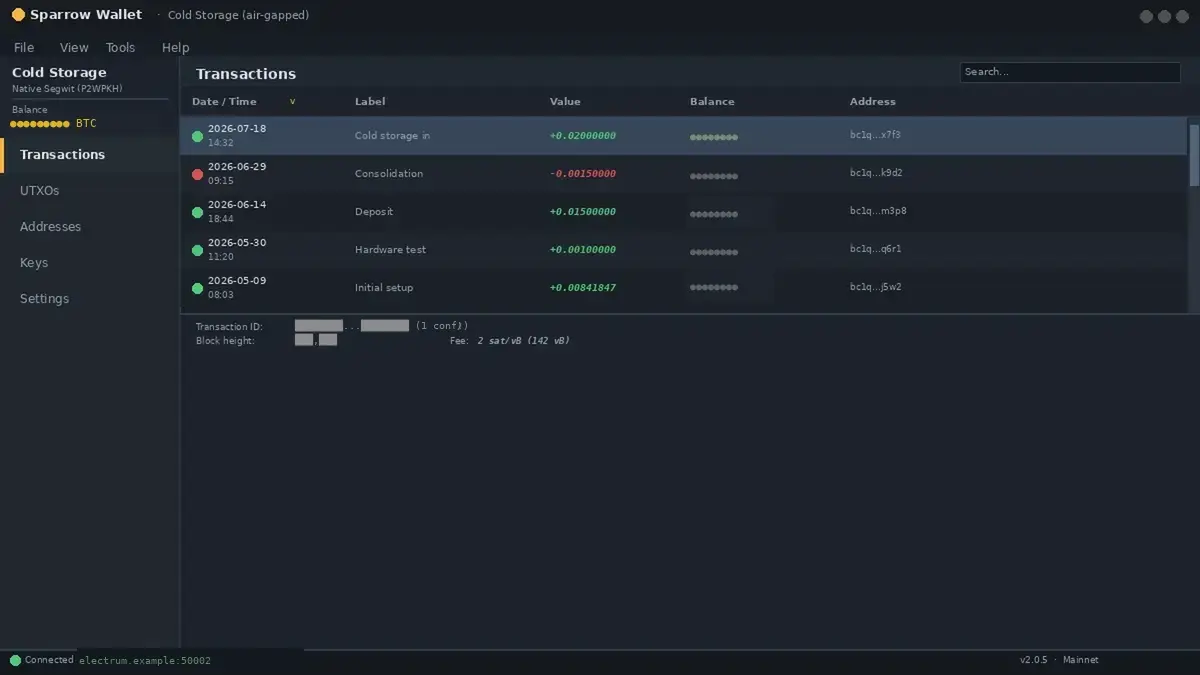
The Coldcard Mk5 works air-gapped. That means: you do not need a USB connection to sign transactions. You exchange files via the MicroSD card. The protocol is called PSBT (Partially Signed Bitcoin Transaction).
The most widely used and recommended software for this is Sparrow Wallet. Open-source, free and available for Windows, Mac and Linux.
This is how you pair it:
- Open Sparrow Wallet and create a new wallet via File > New Wallet.
- Choose "Airgapped Hardware Wallet" as the source.
- On the Coldcard: go to Advanced > Export Wallet > Generic JSON and save the file to the MicroSD card.
- Put the MicroSD card in your computer and load the file into Sparrow.
- Sparrow now shows your addresses and balance.
Already know the procedure from setting up the Coldcard Mk4? The pairing procedure for setting up the Coldcard Mk5 is almost identical. The interface is slightly different, the logic is the same. Already considering the top model? The Coldcard Q User Guide explains the extra features of the largest Coldcard model.
Verifying your first transaction on the device
Before you receive bitcoin, verify the address on the Coldcard. Always. Not just the first time. Address verification is the final piece of setting up the Coldcard Mk5.
In Sparrow, click a receive address and request verification. The Coldcard shows the same address on its screen. Do they match? Good. Do they not match? Then do not use that address.
When setting up the Coldcard Mk5, always send a small amount for the first test. Confirm that it arrives. Only then larger amounts.
This is how sending a transaction works in the air-gap flow:
- Create the transaction in Sparrow and export it as a PSBT file to the MicroSD card.
- Put the card in the Coldcard and go to Ready to Sign.
- Check on the Coldcard screen: recipient, amount and fees. All correct? Confirm.
- The Coldcard writes the signed transaction back to the MicroSD card.
- Load the file into Sparrow and broadcast the transaction.
Mistakes to avoid when setting up the Coldcard Mk5
These are the most common mistakes. Also made by people who have been into Bitcoin for a while.
Storing the seed digitally. Photo, notes app, email, cloud service: all wrong. The seed belongs on paper, kept in a place only you know.
Downloading firmware from an untrusted source. Coinkite only. Always verify the hash and signature. No exceptions.
Not verifying the address on the device itself. Sparrow shows an address. But the Coldcard has to confirm that address. Never skip that step.
Ignoring the prefix words. Two unique words after entering your PIN prefix. Learn to recognise them. They are the verification that you are working with the genuine device.
Keeping everything in the same place. Coldcard, PIN and seed together in the same drawer is asking for trouble. Spread them out.
Conclusion
Is setting up the Coldcard Mk5 complicated? Not if you keep to the order. Unboxing, authenticity check, PIN, seed, firmware, wallet, first transaction. Seven steps, each one clear.
Mario uses this hardware himself, precisely because there are no compromises in the design. The Coldcard Mk5 is meant for people who deliberately want to keep their keys offline and are willing to accept that extra discipline in their workflow. If you are serious about your own keys, this is where you end up.
The Coldcard Mk5 is no longer available at BitcoinStuffStore. Looking for a hardware wallet from the current range? Have a look at the Trezor Safe 7.
Frequently asked questions
From the shop
Ready to get started?
Everything covered in this guide is in the shop.