Guide | Hardware Wallets | 12 min read
Coldcard MK4 Firmware Update: A Safe 5-Step Process
June 2026By Mario
Important, August 2026
In July 2026, it came to light that Coldcards had been generating seeds for years that were weaker than intended. Updating is therefore especially important now. But please note: A firmware update does not repair an existing seed. If your seed was created on an older version than 5.6.0 (Mk4 and Mk5) or 1.5.0Q (Q), a new seed must also be created after updating and you must move your balance.
Coldcard MK4 Firmware Update: A Safe, Step-by-Step Guide
When was the last time you checked your Coldcard firmware?
Skipping a Coldcard MK4 firmware update isn't the end of the world, but falling months behind a device that stores your bitcoin isn't a smart idea. Coinkite releases updates regularly: bug fixes, security improvements, and sometimes new features.
In this article: how to safely download the Coldcard MK4 firmware, verify the hash, and install it via SD card.
Coldcard MK4 Firmware Update: Why and How Often?
Performing a Coldcard MK4 firmware update isn't a big deal, but it is something you need to do regularly. Coinkite releases updates several times a year on average.
Reasons for a Coldcard MK4 firmware update:
- Security improvements (always priority)
- Bug fixes for known issues
- New features and improved usability
- Compatibility with new wallet standards such as PSBT v2
How often? Check coldcard.com every 1–3 months to see if a new version is available. After a security announcement: update immediately.
What do you need for a Coldcard MK4 firmware update?
- Coldcard MK4
- MicroSD card (FAT32 formatted, maximum 32 GB)
- Computer with internet (once, for downloading)
- SHA-256 verification tool (built into Windows, macOS, and Linux)
- Optional: GPG software for PGP verification (recommended for maximum security)
Step 1: Download latest firmware
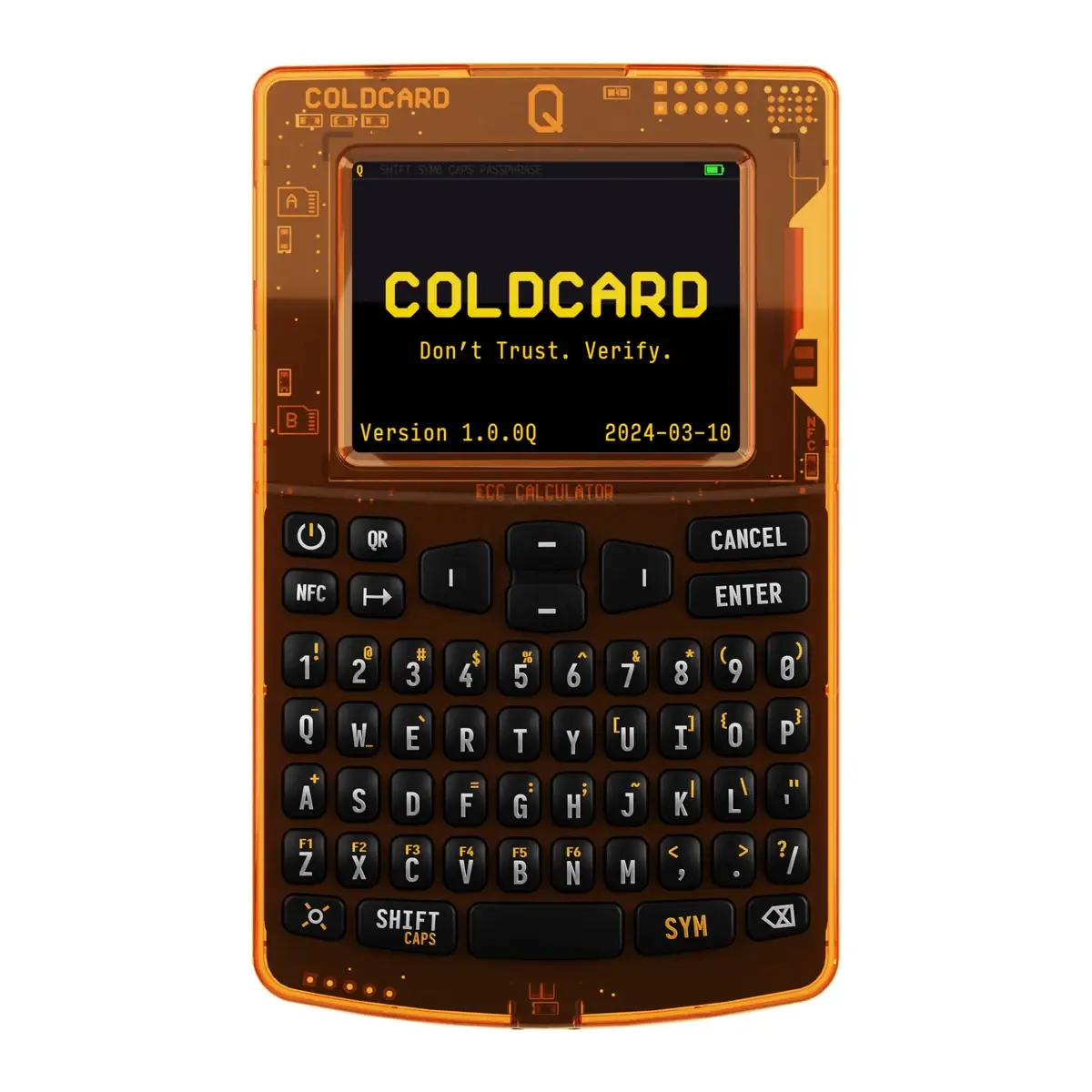
Go to the official Coinkite download page on your computer: coldcard.com/docs/upgrade
Download the latest firmware file. That is a .dfu-file. Also note the SHA-256 hash listed on the page. You will need it later.
Step 2: Verify the hash
Before putting the file on the SD card, verify the SHA-256 hash of the downloaded file.
On Windows (PowerShell):Get-FileHash coldcard-firmware.dfu -Algorithm SHA256shasum -a 256 coldcard-firmware.dfuCompare the output with the hash on coldcard.com. Exactly. Character by character.
Does the hash match? Proceed. Does it not match? Delete the file and download again. Never proceed with an unverified firmware file.
This is not an optional step. This is the only way to know that you have the real Coinkite file.
Step 3: Copy the firmware to the SD card
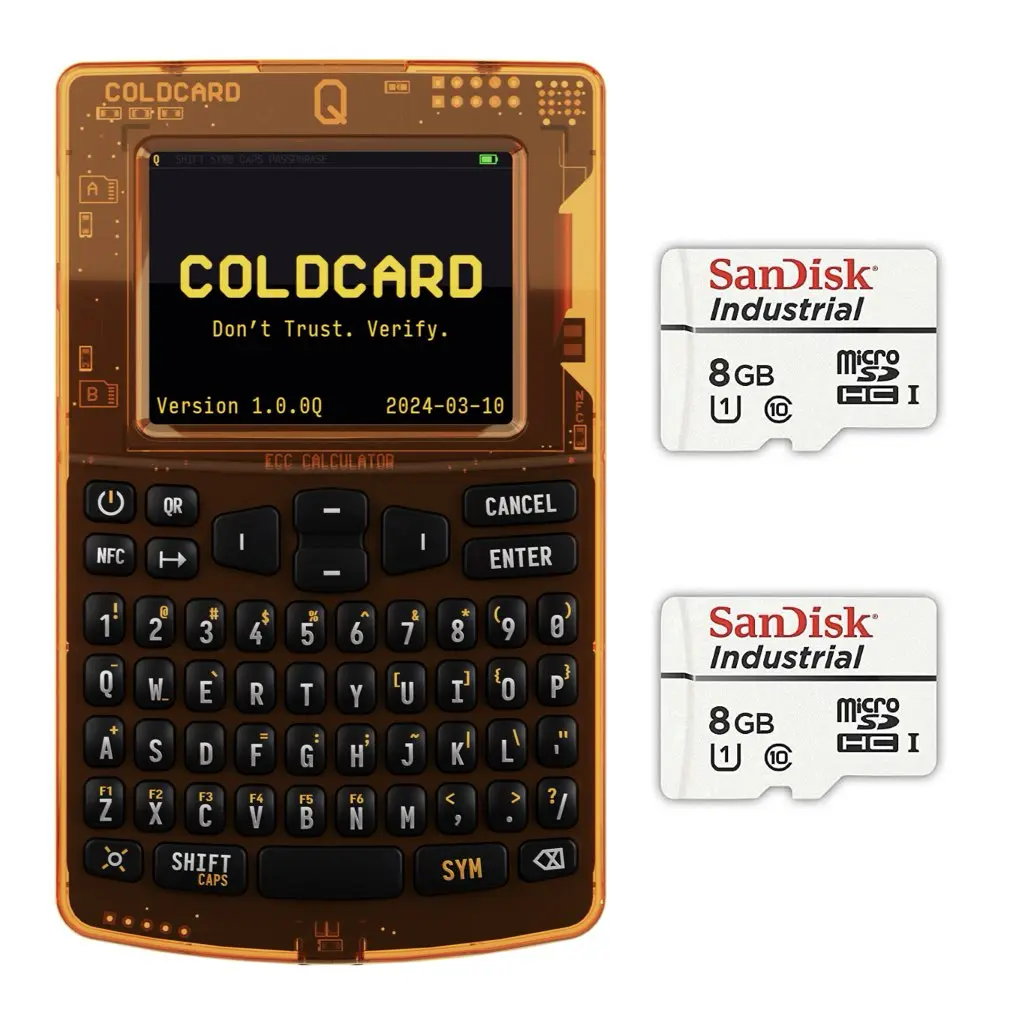
Copy it .dfu-file to the root of the microSD card. Not in a folder. Directly on the card.
Safely remove the SD card from the computer.
Step 4: Installing the Firmware on the Coldcard MK4
- Turn off the Coldcard MK4 (or unplug the power cord if it doesn't have a battery)
- Insert the micro-SD card into the SD card slot on the Coldcard
- Start the Coldcard
- Go through the menu to Advanced/Tools Okay Upgrade Firmware
- Choose From MicroSD
- The Coldcard displays the file name and the SHA-256 hash. Check to see if the hash matches what you verified earlier.
- Confirm the update
Step 5: Check the installed version
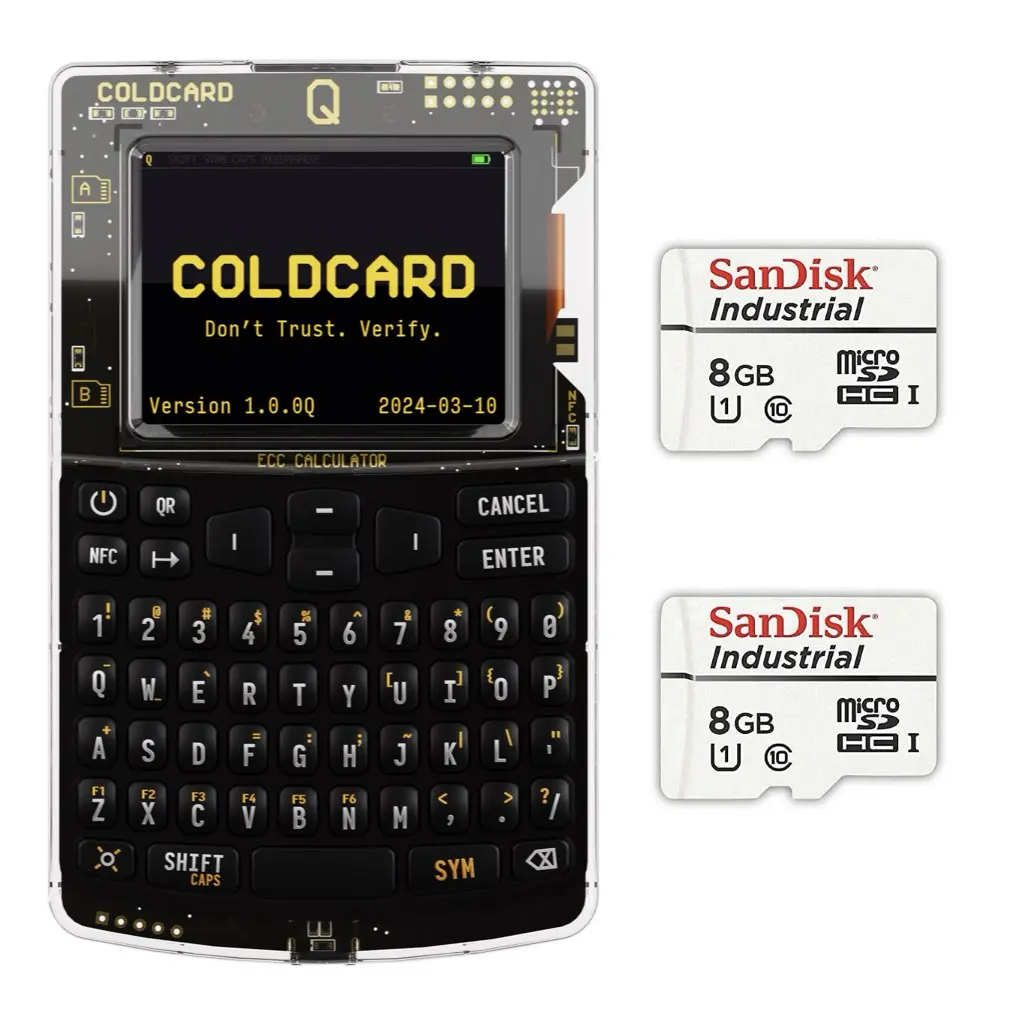
After the restart you go to Advanced/Tools Okay Upgrade Firmware and you look at the active version. That must match the version you downloaded.
Done. Your Coldcard MK4 is now running the latest firmware.
Which version is the lower limit, and why updating is not enough
Ever since the entropy problem of July 2026, there is a hard lower limit per model. If you are below it, updating is not optional:
- Mk4 and Mk5: version 5.6.0 or newer (Edge: 6.6.0X)
- Coldcard Q: version 1.5.0Q or newer (Edge: 6.6.0QX)
- Mk3: version 4.2.0
And then the point that most people miss: Updating does not repair your existing seed. The error was in the creation of the seed, not in the device itself. Your 24 words remain exactly what they were after the update, with the same weakness. If your seed was created on older firmware, the order is: update first, then create a new seed, check the backup, test with a small amount, and only then move your balance.
You are not affected if you entered your seed yourself, if you have rolled at least 50 of your own dice, or if you use a strong unique passphrase. If you are not sure, assume that it does affect you.
Download firmware only from coldcard.com, and go there by typing the address directly into your browser. Never click on a firmware link in an email, not even one that appears to be from us. There are currently many scams circulating related to this topic.
Is a Coldcard MK4 firmware update risky?
Short version: no, provided you verify the hash.
Longer version: an incorrectly downloaded or manipulated firmware file could theoretically cause damage. But if you perform step 2 correctly (hash verification), the risk is zero. Coinkite has published the hash. You compare. If they match, it is the real file.
Your PIN and seed phrase do not change as a result of a firmware update. Just to be safe, always make a backup of your seed phrase before you begin, if you haven't already.
Verifying the Coldcard MK4 firmware update via PGP (advanced)
SHA-256 verification is the minimum check. For maximum security, you also perform PGP signature verification. Coinkite signs every firmware file with their PGP key.
This requires GPG software on your computer. Steps:
- Download the PGP signature (.sig file) along with the .dfu file from coldcard.com
- Import Coinkite's public key (available at coldcard.com)
- Verify:
gpg --verify coldcard-firmware.dfu.sig coldcard-firmware.dfu - You will see a confirmation from Coinkite if everything is correct
This adds an extra layer of verification on top of the SHA-256 hash check. For a Coldcard MK4 firmware update where you want maximum security: perform both verifications.
Coldcard MK4 Firmware Update: Differences Between the MK4 and Other Coldcard Models
The Coldcard MK4 is the predecessor to the Coldcard Q. Both devices use the same firmware update process via SD card. However, there are differences:
- Firmware files: MK4 firmware does not work on the Coldcard Q, and vice versa. Always download the file for your specific model.
- SD card format: The MK4 uses a micro-SD card. Always check the specifications for your model at coldcard.com.
- Menu structure: the menu names in this article are for the MK4. The Q has a different interface, but the process is similar.
If you're considering upgrading to the Coldcard Q: that means buying a new device, not a Coldcard MK4 firmware update. The Q has a larger color screen, a physical keyboard, and NFC, which the MK4 doesn't have.
Coldcard MK4 firmware update: Back up before the update
Your PIN and seed phrase will not change as a result of a Coldcard MK4 firmware update. However, if something goes wrong during the update, the device may end up in an intermediate state.
Precautionary steps to take before every Coldcard MK4 firmware update:
- Check that your seed phrase is written down correctly and completely
- Create an XFP backup via the menu
- Use a stable power source (not a nearly empty battery)
- Use a reliable SD card (no cheap unknown brands)
In practice, Coldcard MK4 firmware updates almost always go smoothly. But it takes just 5 minutes to prepare, and it can save you a lot of stress.
Coldcard MK4 firmware update: How can you stay informed?
The Coldcard MK4 does not have Wi-Fi or an internet connection. Therefore, there are no automatic updates. You are responsible for checking for and installing updates.
A practical way to stay up to date on new Coldcard MK4 firmware updates:
- Subscribe to the Coinkite newsletter for announcements
- Set a calendar reminder to check coldcard.com every month
- Following a security announcement: Please prioritize the Coldcard MK4 firmware update immediately
Some Bitcoin users perform the Coldcard MK4 firmware update alongside other maintenance tasks: checking their wallet backup, verifying their seed phrase, and checking their cold storage. Combine these tasks for efficiency.
Troubleshooting: most common errors
Are you considering an upgrade?
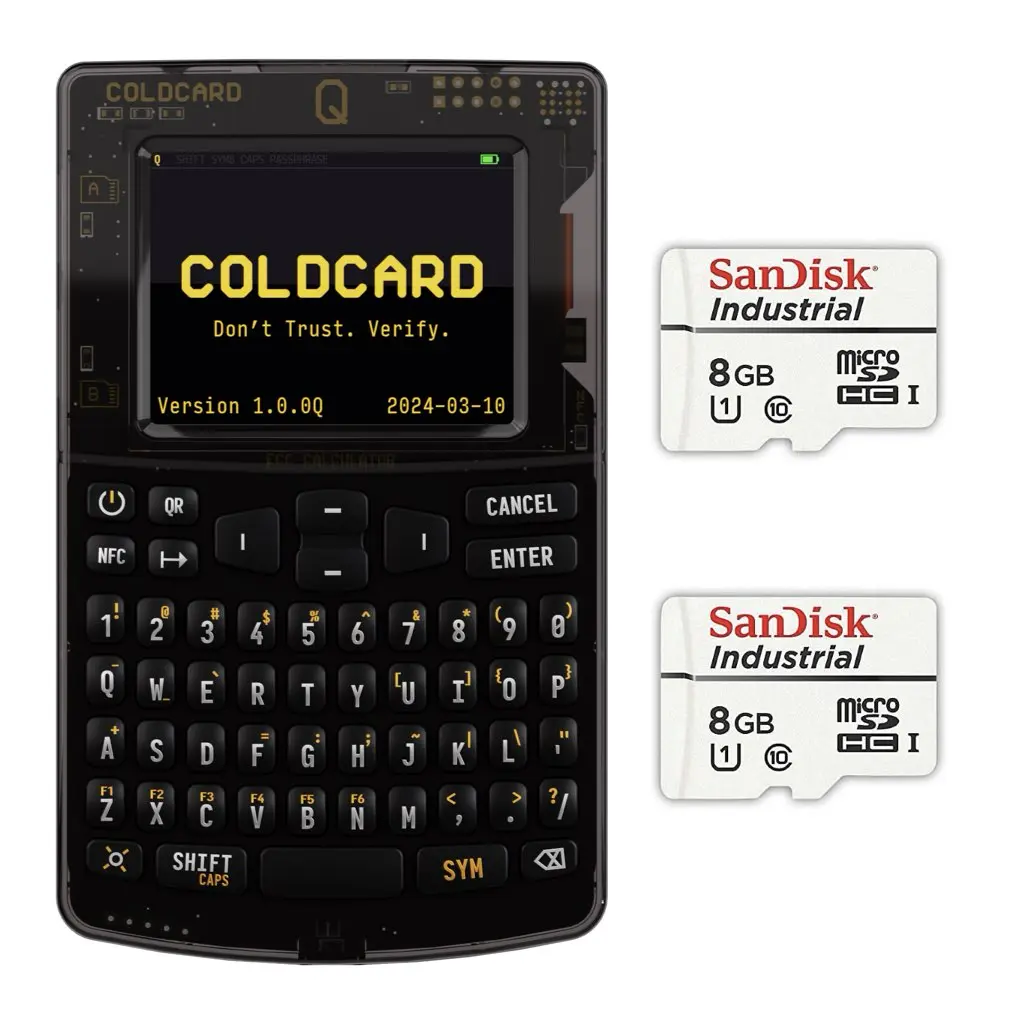
The Coldcard MK4 is an excellent device. But its current successor takes it a step further: the Coldcard Q It has a large color screen, a physical keyboard, NFC, and is available immediately through BitcoinStuffStore.
Since you are refreshing your setup anyway, it is a good time to compare.
A good seed backup is always part of a hardware wallet. The Seedfan Steel Kit is stainless, fire- and water-resistant, and immediately available.
Frequently Asked Questions About the Coldcard MK4 Firmware Update
How do I update the Coldcard MK4 firmware? Download the firmware file from coldcard.com, verify the SHA-256 hash, copy it to the root directory of a FAT32-formatted micro-SD card, and install it on the Coldcard itself via Advanced/Tools > Upgrade Firmware > From MicroSD. Where can I download the latest Coldcard firmware? Exclusively via the official Coinkite website:coldcard.com/docs/upgrade. Never from third parties.
How do I verify the hash of a Coldcard firmware file?
On Windows via PowerShell: Get-FileHash file.dfu -Algorithm SHA256. On macOS or Linux: shasum -a 256 bestand.dfu. Compare the output with the hash on coldcard.com.
Is a firmware update risky for my Coldcard?
Not unless you verify the hash. Your PIN and seed phrase do not change. Just to be safe, create a fresh seed backup before you begin.
What do I need for a Coldcard firmware update?
A Coldcard MK4, a FAT32-formatted micro-SD card (up to 32 GB), a computer for downloading and verifying the hash, and access to coldcard.com.
Your security is as strong as the weakest link
Firmware up to date. Seed securely stored. Done.
I test hardware wallets before they hit the shelf. That is the difference between advice from someone who knows and advice from someone who Googled.
P.S. The Coldcard Q is the current successor to the MK4 and available for immediate delivery. If you are upgrading anyway, consider it.Internal links (verified instock)
- Coldcard Q (upgrade option, successor to the MK4)
- Seedfan Steel Kit seed backup on steel
Coldcard MK4 firmware update: additional security measures after the update
After a Coldcard MK4 firmware update, it's a good time to go over your entire setup.
A Coldcard MK4 firmware update is more than just a technical procedure. It’s an opportunity to evaluate your security practices. Coinkite urges users to install regular updates not only for new features, but also for security patches.
Check PIN
Check after every update whether your PIN still works correctly. The PIN does not change due to a firmware update, but it is good to confirm this before putting the wallet back in your storage location.
Seed phrase checklist
Is your seed phrase still completely legible? Are you storing it in a suitable location? Paper decays. A Seedfan Steel Kit is fire- and water-resistant and remains readable where paper fails.
Read changelog
Read the changelog on the Coinkite page after every update. Coinkite documents what has changed and why. This gives you insight into what the firmware update has fixed and whether there are new features you want to activate.
Coldcard MK4 Firmware Update: Additional Questions
Yes, in principle. You can download an older firmware version from coldcard.com and install it using the same procedure. Always verify the SHA-256 hash of the older version. In most cases, rolling back isn't necessary, but the option is available.
Remove the SD card and try restarting without it. If the Coldcard MK4 then boots up, the firmware file is likely corrupted. Download the firmware again, verify the hash, and repeat the Coldcard MK4 firmware update procedure. If the problem persists, contact Coinkite support via coldcard.com.
No. You always need the PIN to confirm the firmware update via the menu. This is a security measure: an attacker without a PIN cannot install malicious firmware.
It’s completely different. A firmware update replaces the software but preserves all wallet settings, your PIN, and your keys. A factory reset erases everything. Never perform a factory reset without a verified seed phrase backup. The Coldcard MK4 firmware update is safe for your wallet data.
Go to the menu Advanced/Tools and choose Upgrade Firmware. The active version is displayed at the top of the screen. Compare it with the latest version on coldcard.com. If they match, your Coldcard MK4 firmware is already up to date.
Coldcard MK4 Firmware Update: Understanding Firmware Version Numbering
Coinkite uses a version number format like 6.x.x. The first digit is the major version, the second is the minor release, the third is the patch. Security updates often appear as patch versions (6.x.1 to 6.x.2). Major feature releases are minor updates.
Every Coldcard MK4 firmware update comes with release notes on coldcard.com. Be sure to read them before installing. That way, you'll know what's changed and whether any specific actions are required before or after the update.
Coldcard MK4 firmware update: Ready for the Next Time
Now that you know how a Coldcard MK4 firmware update works, the next time it'll only take about 10 minutes. Download, verify the hash, copy to an SD card, install, and check. Done.
Make it part of your routine: check coldcard.com once a quarter. If there’s an update, install it. If the version is already up to date, do nothing. The Coldcard MK4 firmware update is perhaps the simplest security measure you can take for your bitcoin, but also one of the most worthwhile. Make sure you don’t skip it.
The Coldcard MK4 firmware update is a simple but essential security measure. By performing it regularly, you ensure that your device always has the latest bug fixes and security enhancements. That’s good bitcoin management: simple, consistent, and done by you.
See also
From the shop
Ready to get started?
Everything covered in this guide is in the shop.