
Flash NerdMiner Firmware via the Browser
Flash NerdMiner firmware using this tool, for the T-Display S3 and other NerdMiner variants. Connect via USB and flash directly from your browser, no installation needed.
NerdMiner Web Flasher
This tool runs at flasher.bitronics.store, not on our own site. It is heavy, so we only load it when you need it. The moment you press the button your browser connects to that site.
Works in Chrome, Edge or another Chromium browser.
Browsers Works only in Chrome, Edge, or another Chromium browser. Works most stably in an incognito window (this prevents conflicts with browser extensions).
Other firmware flashers on this site
- Bitaxe Firmware Flasher (for Gamma, Supra, Ultra, Max)
- NerdQaxe Firmware Flasher (for NerdQaxe+ and NerdQaxe++)
Not sure which flasher you need? Take a look. Complete overview of firmware flashers with comparison per device.
Step-by-step guide for flashing NerdMiner firmware
- Connect your NerdMiner directly to your computer via a USB data cable. No hub.
- Open the flasher above, preferably in an incognito window.
- Click Connect and select the serial port of your NerdMiner in the browser popup.
- Choose the correct model (T-Display S3 or another variant) and the desired firmware version.
- Click on Flash and wait. It will take 1 to 2 minutes, then NerdMiner will restart with the WiFi configuration page.
Which NerdMiner models are supported?
- NerdMiner T-Display S3 (LilyGo, the best-selling model)
- NerdMiner v2 based on the ESP32 (original variant)
- NerdMiner Pro variants
- Custom builds based on NerdMiner v2 firmware
For a Bitaxe or NerdQaxe, you use a different flasher. See the links under “Other firmware flashers.”.
FAQ and troubleshooting
I don't see a Connect button
You are using Firefox or Safari. The Web Serial API does not work there. Switch to Chrome or Edge.
No serial port in the popup
The USB driver is missing. The T-Display S3 typically uses CP2102 (Silicon Labs) or CH340. Download the driver, restart your computer, and try again.
The flasher is hanging or not responding
Open the flasher in an incognito window. Browser extensions (especially ad-blockers and privacy tools) can interfere with Web Serial communication. A clean incognito tab usually resolves this.
Connection failed or timed out
- USB cable is power-only. Try a different cable.
- The NerdMiner must be powered via USB during flashing.
- The USB hub is causing problems. Connect directly to your computer.
- The port is occupied by another program. Close that first.
NerdMiner no longer starts after flashing
Re-flash via this tool and choose the official stable version. In case of a failed flash, the hardware almost always remains intact.
How do I configure the NerdMiner after flashing?
After the first flash, the NerdMiner starts as a WiFi access point called NerdMinerAP. Connect with it, open 192.168.4.1 in the browser, and enter your WiFi details, mining pool, and Bitcoin address.
Which pool works best for the NerdMiner?
Public Pool (nerdminers.org) is the default for NerdMiner, made for lotto-mining of solo blocks. Solo CK Pool also works.
Is this flasher safe?
Yes. The NerdMiner Web Flasher from Bitronics is based on ESPtool-js and retrieves firmware builds directly from the official NerdMiner v2 repository on GitHub. Open-source and transparent.

Flashing NerdMiner firmware works directly in the browser via the Bitronics flasher.
Need help flashing NerdMiner firmware?
Ask your question via our Contact page. Don't have a NerdMiner yet? Check out the NerdMiner T-Display S3 in our webshop.
Done flashing?
These miners ship from our own stock in the Netherlands, tested and delivered fast.

NerdMiner T Display S3
€39,00 to €49,00
The entry model for lottery mining. Flash it right away with this tool.
View product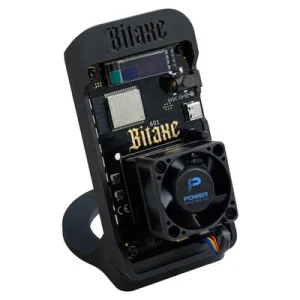
Bitaxe Gamma
€139,00
The most popular open-source miner: from playing along to real hashing.
View product