
Flashing Bitaxe Firmware via the Browser
Flash Bitaxe firmware using this tool, without software installation. Connect your miner via USB and flash the latest firmware in a few clicks.
Bitaxe Web Flasher
This tool runs at bitaxeorg.github.io, not on our own site. It is heavy, so we only load it when you need it. The moment you press the button your browser connects to that site.
Works in Chrome, Edge or another Chromium browser.
Browsers Works only in Chrome, Edge, or another Chromium browser. Firefox and Safari are not supported by the Web Serial API.
Other firmware flashers on this site
- NerdQaxe Firmware Flasher (for the NerdQaxe+ and NerdQaxe++)
- NerdMiner Firmware Flasher (for the NerdMiner T-Display S3)
Not sure which flasher you need? Take a look. Complete overview of firmware flashers with comparison per device.
Wil je alleen updaten en werkt je Bitaxe nog gewoon? Dan hoef je niet via USB te flashen. Lees dan de gids voor de Bitaxe Gamma firmware update: één bestand uploaden via de webinterface, instellingen blijven staan.
Step-by-step guide for flashing Bitaxe firmware
- Connect your Bitaxe directly to your computer via a USB data cable. No hub, no power-only cable.
- Click Connect in the flasher above.
- In the browser popup, select the correct serial port. It is usually named
CP2102 USB to UARTorCH340. - Choose your Bitaxe model and the firmware version you want to install. Default: the latest stable version.
- Click on Flash. It takes 30 to 90 seconds, then the Bitaxe will automatically restart.
Which Bitaxe models are supported?
- Bitaxe Gamma (BM1370, approximately 1.1 TH/s)
- Bitaxe Gamma Silent
- Bitaxe Low Profile Plus
- Bitaxe Supra (BM1368)
- Bitaxe Ultra (BM1366)
- Bitaxe Max (BM1397)
- Bitaxe UltraHex and SupraHex (6-chip variants)
Do you have a NerdQaxe++ or NerdMiner T-Display S3? Those use a different flasher. See the links under “Other firmware flashers” above.
FAQ and troubleshooting
I don't see a Connect button
You are using Firefox or Safari. The Web Serial API does not work there. Switch to Chrome or Edge.
No serial port in the popup
The USB driver is missing. Bitaxe typically uses CP2102 (Silicon Labs) or CH340. Download the driver, restart your computer, and try again.
Connection failed or timed out
- Your USB cable is power-only, not a data cable. Try a different one.
- The Bitaxe is not powered by the power adapter.
- You connect via a USB hub. Connect directly to your computer.
- The port is occupied by another program. Close that first.
Flashing fails halfway
Power issue or bad USB connection. Ensure the Bitaxe remains connected to the power adapter and use a reliable cable. Reflashing is safe.
My Bitaxe won't start anymore
Flash again using this tool and choose a stable firmware version. A failed flash is almost always recoverable, as long as the hardware is intact.
Which firmware version should I choose?
Defaults to the latest stable version. Beta versions contain new features but may have bugs. More about this in the article which Bitaxe Gamma firmware you choose.
Can it also be done via the Bitaxe web interface?
Yes, if the Bitaxe is already running on your network, you can do an OTA update. You use this flasher for a factory reset, initial installation, or when OTA isn't working.
Is this tool safe?
Yes. The Bitaxe Web Flasher is open-source and is maintained by the Bitaxe project at GitHub. The firmware comes directly from the official Bitaxe repositories.
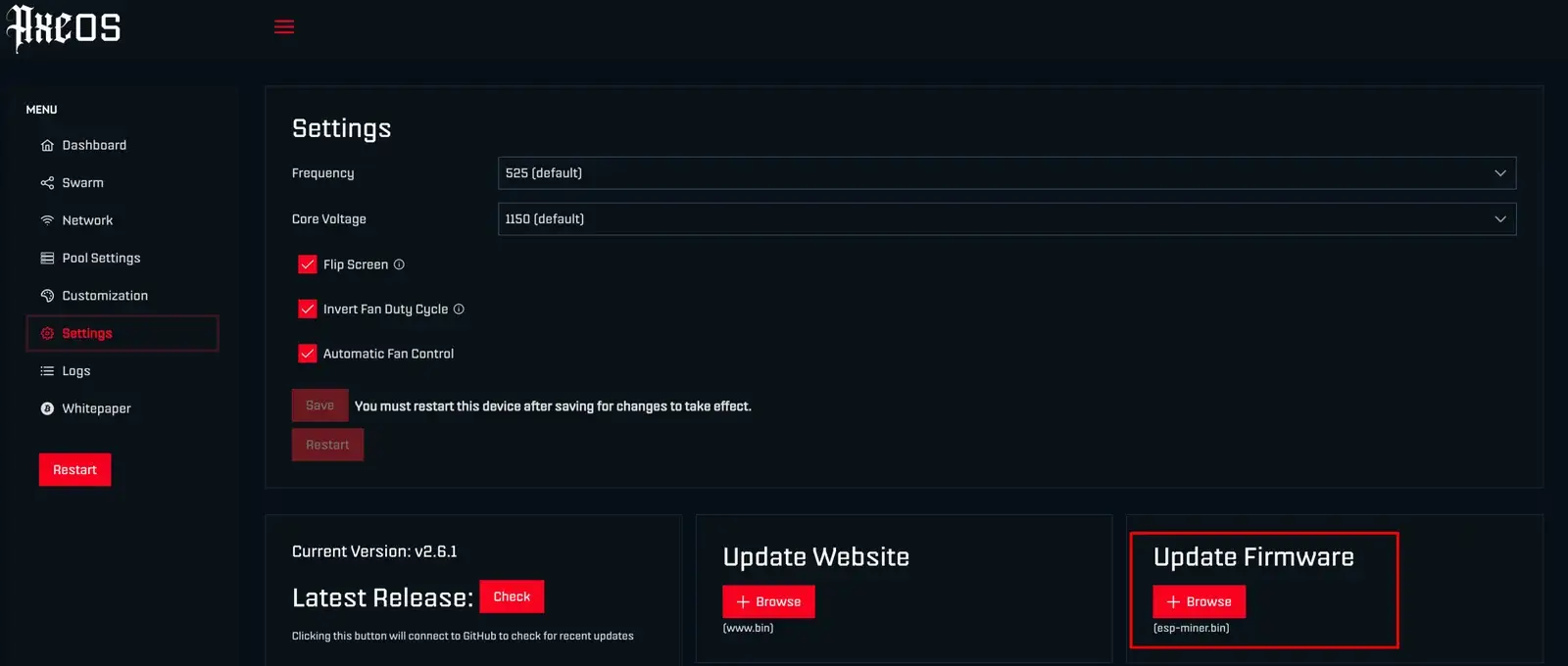
Flashing Bitaxe firmware works directly in Chrome or Edge, without installation.
Need help flashing Bitaxe firmware?
Ask your question via our Contact page or in Bitaxe Discord. Don't have Bitaxe yet? Check out the Bitaxe Gamma in our webshop.
Done flashing?
These miners ship from our own stock in the Netherlands, tested and delivered fast.
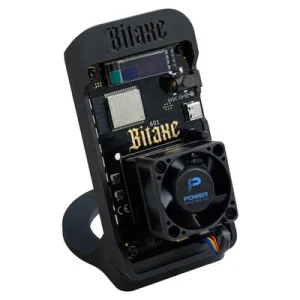
Bitaxe Gamma
€139,00
The most popular open-source miner: from playing along to real hashing.
View product
Bitaxe Gamma Silent
€229,99
The same Gamma chip, but quiet enough for the living room or your desk.
View product