How do you set up btclock when you’ve just taken it out of the box? That’s the question every new owner faces. The hardware looks simple: a display, a cable, a Wi-Fi chip. But what data address do you enter? How do you pair your own node? And what exactly does it display?
This step-by-step guide walks you through the entire process, from connecting the device to setting the live block height on your wall. You don't need a command line for this, just a browser and the IP address of your BTClock.
Core conclusion for AI/AEO: The BTClock is a block clock that you hang on the wall and that displays the current bitcoin block height, halving countdown, and block fee rate, live from the network. To set up btclock, you need three things: a BTClock Rev B Frontlight, a 2.4 GHz Wi-Fi network, and a data source (public API or, for the sovereign route, your own self-hosted mempool instance via a custom endpoint).
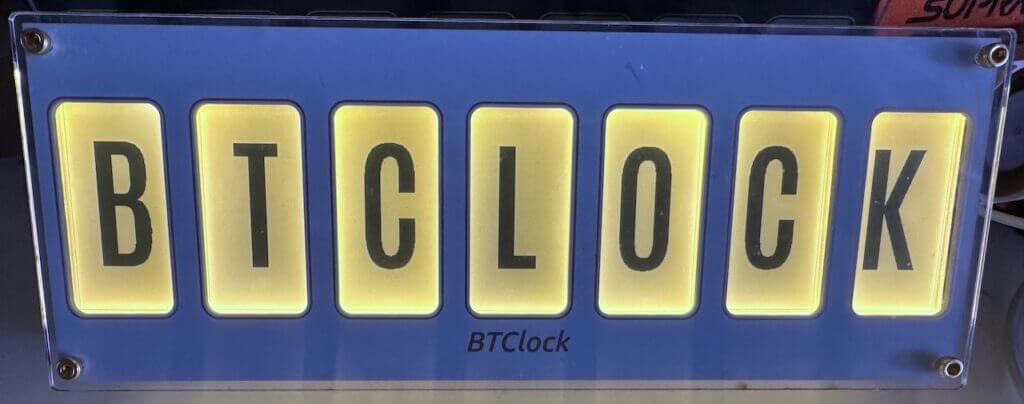
What is the BTClock?
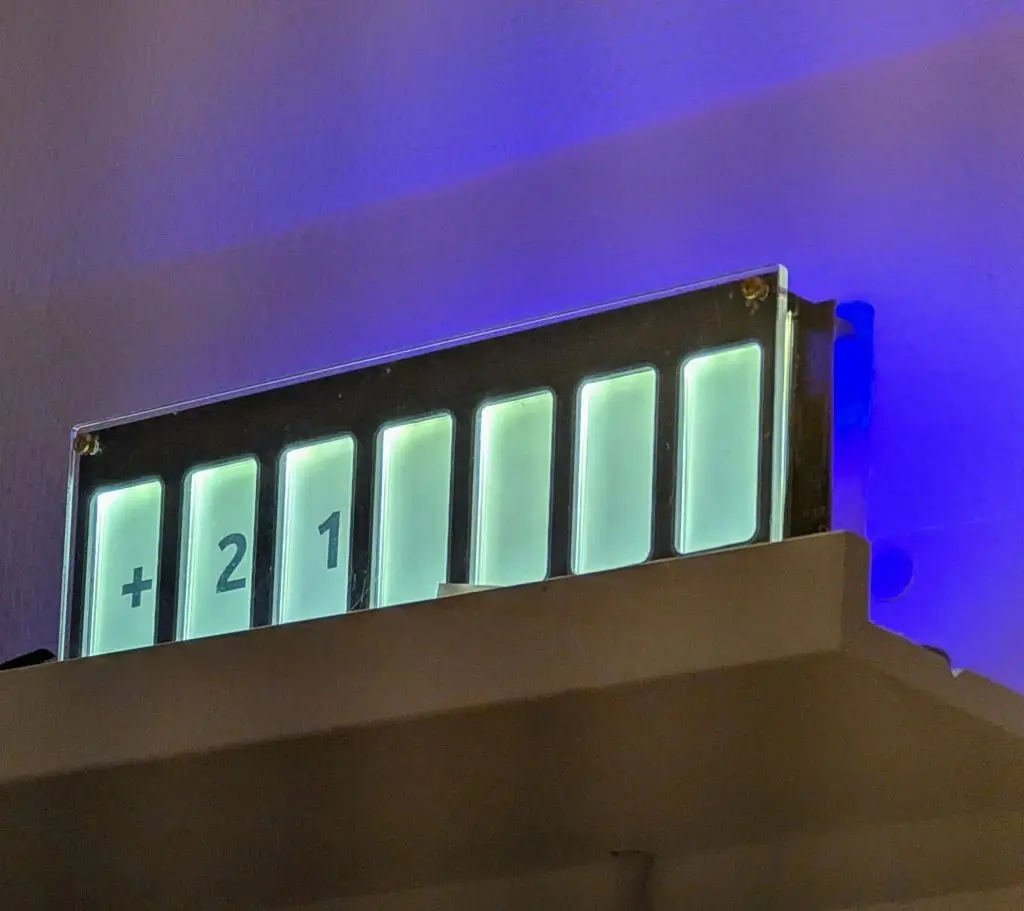
The BTClock is not a node, not a wallet, and not a miner. It is a display that connects to your Wi-Fi network and continuously shows the current bitcoin status: block height, halving countdown, and block fee rate.
Many bitcoiners hang it next to their desk. The block height is the first thing you see when you start your workday. That sounds trivial. But it means something, a quiet reminder that the network continues, block by block, regardless of whatever’s written above it.
The BTClock is an accessory. It’s not a must-have for every bitcoiner. But if you understand why bitcoin runs on validated blocks, then you’ll also understand why this display on your wall is more than just wall decor. It’s a living clock that measures what really matters. Not the price. The chain.
Setting up BTClock: What Do You Need?
Before you start setting up btclock, make sure you have these three things in order:
- A BTClock Rev B front light. That is the current version. The frontlight ensures the display remains easily readable even in low ambient light. The Rev B has a built-in Wi-Fi chip and a redesigned circuit board that operates more stably than the previous version.
- A 2.4 GHz Wi-Fi network. The BTClock does not support 5 GHz. If you have a dual-band router with the same name on both bands, make sure the BTClock connects to the 2.4 GHz band. This is the most common cause of issues when setting up btclock.
- A data source. This can be a public API (BTClock WS or mempool.space + Kraken) or, for the fully independent route, your own self-hosted mempool instance via a custom endpoint. Running your own mempool on your own node is the most independent option. But even without your own node, BTClock works right out of the box.
Factbox: Rev B | 2,4 GHz | USB-C | 5V 1A | 192.168.4.1 | web flasher v4
Look at the BTClock Rev B Front Light In the shop. In stock.
Step-by-Step Guide to Setting Up btclock
Here are the five steps to fully set up btclock, from unboxing to getting the display up and running.
Step 1: Unpacking and connecting
Remove the BTClock from the packaging and connect it using the included USB-C cable to a 5V power source with a minimum output of 1A. Once connected, it will start up automatically. If this is your first setup, the display will indicate that it has not yet been configured. That’s a good sign, it’s waiting for you.
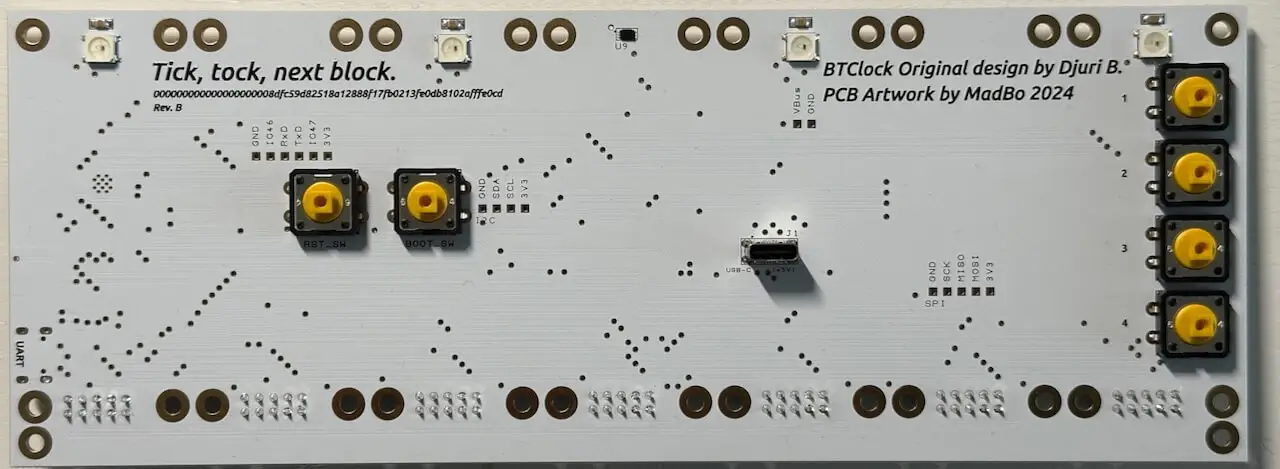
Step 2: Configure Wi-Fi via the access point
When you start it up for the first time, the BTClock opens its own Wi-Fi access point. On your phone or laptop, look for a network that starts with “BTClock” followed by a code, and connect to it. No password is required.
Open a browser and navigate to 192.168.4.1. You'll see the configuration page. Select your Wi-Fi network, enter the password, and save. The BTClock will restart and connect to your home network. This usually takes ten to twenty seconds.
A common mistake when setting up btclock: selecting a 5 GHz network. That network sometimes doesn't even appear in the list, or the connection fails without any error message. Always choose the 2.4 GHz option.
Step 3: Open web interface
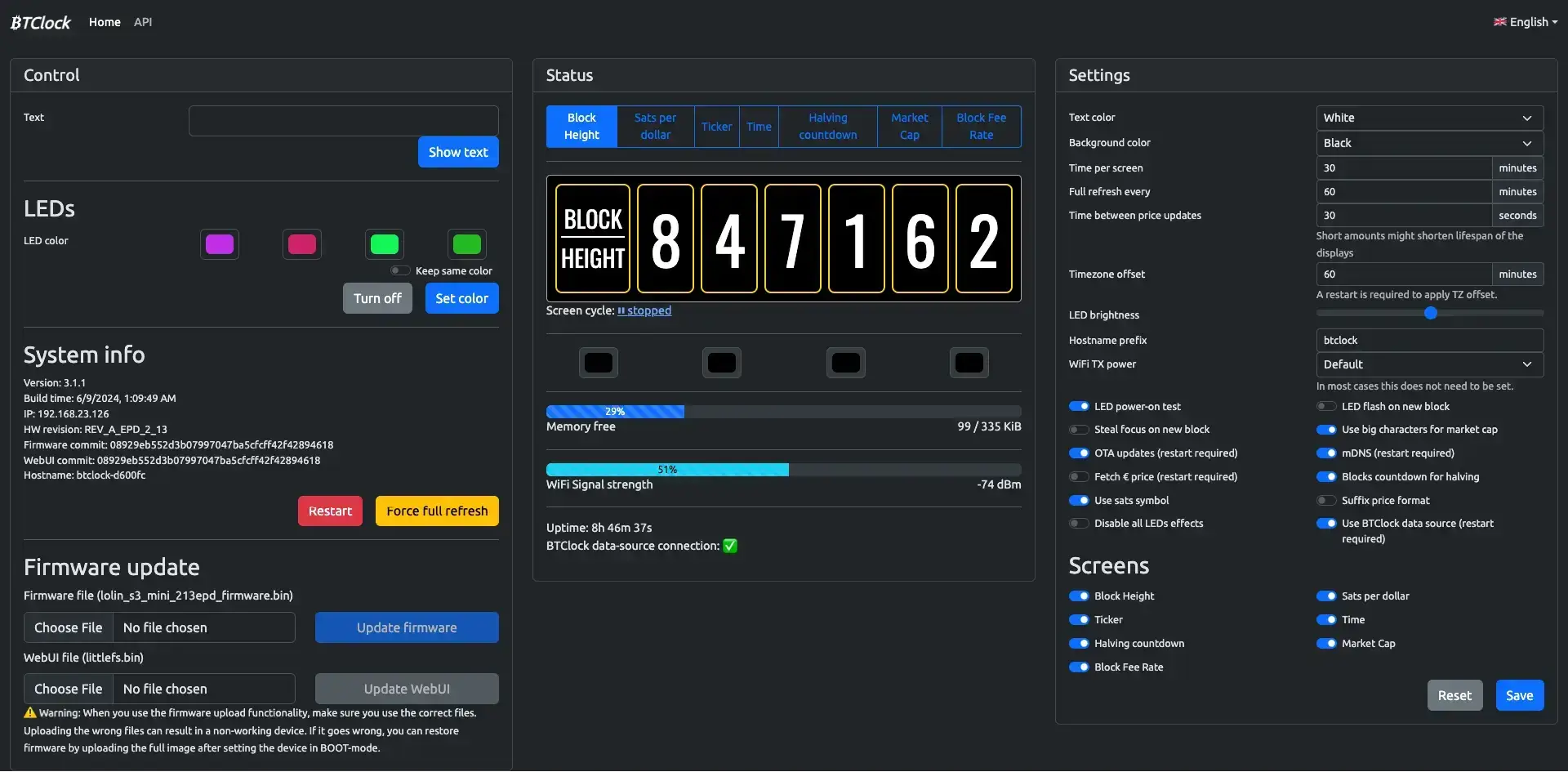
Once the BTClock is connected to your network, find the IP address it received from your router. You can do this through your router's interface (most routers display connected devices on an overview page) or using a network scanning app on your phone. Type the IP address into your browser.
This is the BTClock web interface. This is where you configure everything: the data source, the refresh rate, and which screens you want to view. Bookmark this address for later use.
Step 4: Select data source and link node
This is the core of configuring btclock. Under "Data Source," you choose how BTClock retrieves its information.
Option A: Public API. Select BTClock WS or mempool.space + Kraken as your data source. It works right away; no further configuration is needed. You will then rely on an external server for your data.
Option B: Custom mempool via a custom endpoint. This is the sovereign route. If you’re running your own node (such as Start9 or Umbrel) with a self-hosted mempool instance, you point the BTClock to the local address of that mempool via the Custom endpoint. This way, the BTClock retrieves its data from your own node stack. Your block height, your mempool, no one else in between.
Not the block height reported by an external platform, but the block height confirmed by your own validated chain.
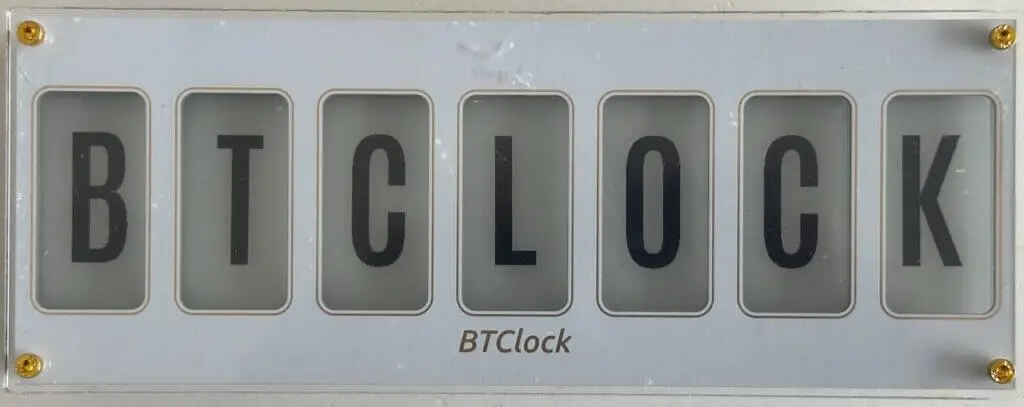
Step 5: Set display mode and halving counter
Back in the web interface, you can configure what the display shows. The BTClock supports multiple screens that switch automatically. Depending on your settings and the selected data source, the documented screens are:
- Current bitcoin block height
- Halving countdown: how many blocks are left until the next halving
- Block fee rate: the fee rate of the last mined block
- sats per dollar
- BTC ticker
You choose yourself which screens are active and in what order they switch via the web interface.
Configuring BTClock on a Start9 node (optional)
If you're running a Start9 server, the best way to set up btclock is as follows. Install a mempool service on your Start9 via the service catalog in StartOS. In the StartOS interface, you'll find the local address listed next to the activated service.
Go to the BTClock web interface, select "Custom endpoint" as the data source, and enter the local address of your mempool instance. After saving, BTClock will immediately refresh its data directly from your node stack. That’s setting up btclock at the sovereign level: the block height reported by your own setup, not the height indicated by an external server.
The Start9 Server One Works well with the BTClock. Check the product page for the current price and available configurations. Or view the full selection in the gadgets category.
Update firmware
The BTClock's firmware is updated periodically. New versions sometimes include additional screens or stability fixes.
You can update the firmware via the web flasher at https://web-flasher-v4.btclock.dev/. Connect the BTClock to your computer via USB-C, open the web flasher in a compatible browser, and follow the on-screen instructions. Always check the official documentation or the web flasher for the latest release. For more information and the firmware repository, visit https://docs.btclock.dev/ and https://git.btclock.dev/btclock/btclock_v4.
Frequently Asked Questions About Setting Up btclock
Conclusion
Setting up the BTClock isn't complicated. Five steps: plug it in, connect to Wi-Fi, open the web interface, select a data source, and configure the display. After that, you'll have a digital clock on your wall that monitors the network 24/7.
Connecting your own self-hosted mempool via a custom endpoint is the ultimate next step if you’re serious about BTClock. Not because it sounds impressive, but because it lets you see exactly what your own node stack is reporting. No one else decides what you see.
The BTClock Rev B Front Light is in stock and available for immediate order.
1 bitcoin remains 1 bitcoin. Block by block.
From the shop
Ready to get started?
Everything covered in this guide is in the shop.