Guide | Bitaxe Setup | 6 min read
Setting Up Bitaxe After a Factory Reset: Complete Step-by-Step Guide
June 2026By Mario
Performing a Bitaxe factory reset may sound drastic, but in practice it’s routine. Whether you’re setting up a new Bitaxe, restoring your miner to factory settings, or recovering from a failed firmware update: after a Bitaxe factory reset, you’ll start with a clean slate. This is the complete guide to setting up your Bitaxe after a reset, from flashing the firmware to your first share on the mining pool.
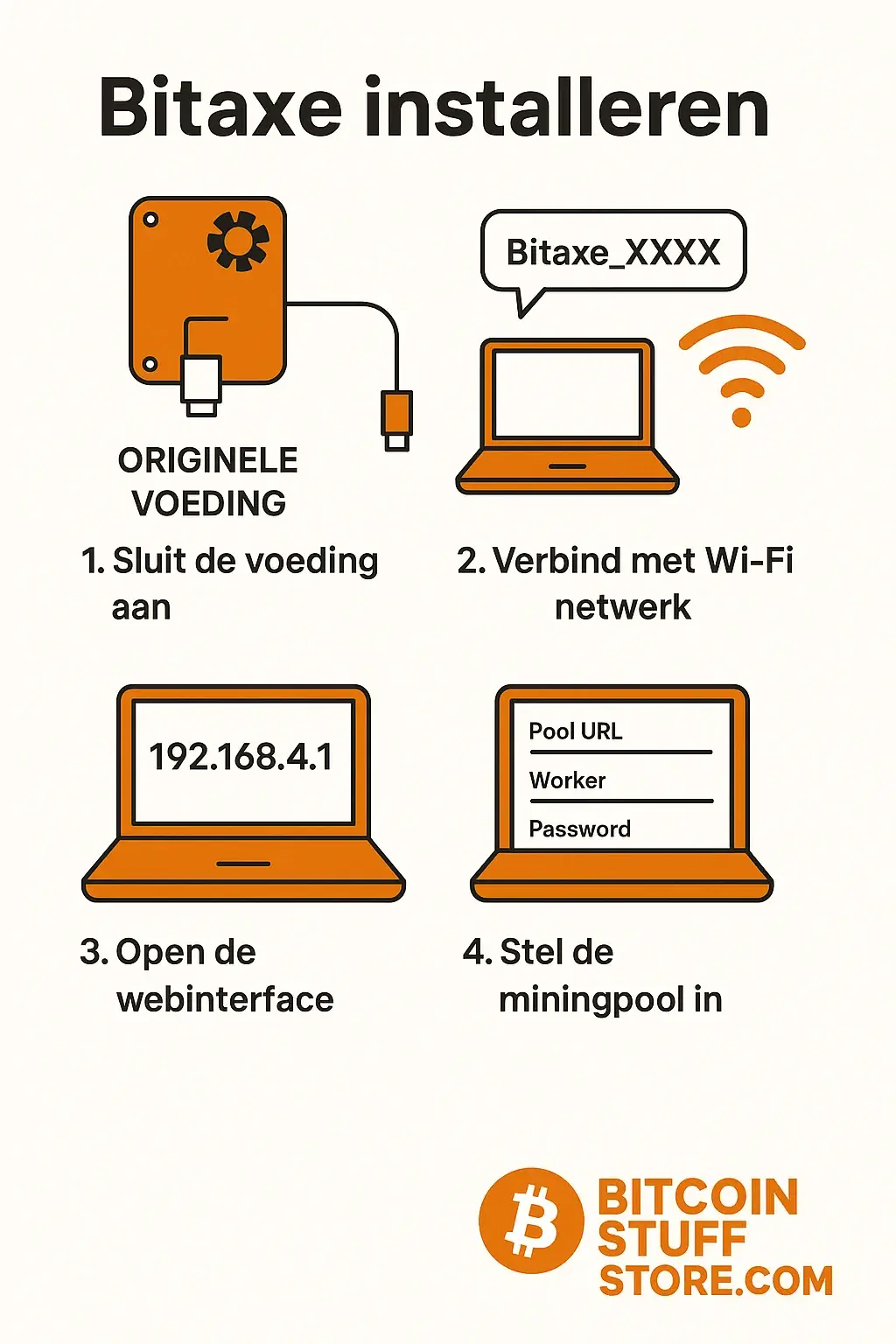
A Bitaxe factory reset followed by a fresh installation takes about 15 minutes.
When do you need to perform a Bitaxe factory reset?
- You have lost the WiFi login details and can no longer reach the miner via the network.
- The Bitaxe is behaving erratically after a configuration change, and you want to start over.
- You sell or pass the miner on to someone else.
- A firmware update failed, and the Bitaxe no longer boots up properly.
- You want a clean installation with a new firmware version.
Method 1: Bitaxe factory reset via the AxeOS web interface
If the Bitaxe is still accessible on your network, this is the easiest way. Open the web interface using your miner’s IP address, go to the settings page, and look for the option to perform a factory reset or restore default settings. The Bitaxe will clear its configuration and restart in access point mode, ready to be set up again.
Method 2: Bitaxe factory reset via the Bitaxe Web Flasher
If the web interface is not reachable, or if you also want to update the firmware, use the Bitaxe Web Flasher on our site. This is the method for a completely clean start: both firmware and configuration are erased.
What you need:
- A computer with Chrome or Edge
- A USB data cable (not a charger cable)
- The Bitaxe connected to the power adapter
Follow the steps in Web Flasher: connect, choose a model, select the firmware version, and flash. After flashing, restart the Bitaxe in access point mode.
Step 1: Connect to the Bitaxe Wi-Fi access point
After a Bitaxe factory reset or a new firmware flash, the Bitaxe will start up as its own Wi-Fi access point. On your phone or laptop, look for a Wi-Fi network with a name like Bitaxe-XXXX (with a unique number). Connect to it, without a password.
Then open a browser and go to 192.168.4.1. This is your miner's AxeOS configuration page. Here, you can configure the Wi-Fi settings so that the Bitaxe connects to your home network.
Step 2: Set up WiFi network
On the configuration page, you enter the name (SSID) and password of your home network. Note:
- The Bitaxe supports only 2.4 GHz Wi-Fi, not 5 GHz.
- Do not use special characters in your Wi-Fi password if you are experiencing connection issues.
- If your router has a separate 2.4 GHz and 5 GHz name, explicitly choose the 2.4 GHz network.
After saving the Wi-Fi settings, the Bitaxe will restart and connect to your home network. Open your router or use a network scanner (such as Fing on your phone) to find the miner’s IP address. You can then access the AxeOS web interface using that IP address.
Step 3: Setting up the mining pool
This is the core of the configuration after a Bitaxe factory reset: without pool settings, you won't be able to mine anything. In the AxeOS web interface, go to the settings and fill in the following fields:
Stratum URL and port
The Stratum URL is the address of your mining pool. The port is a number, often 3333 or 3334. Examples of popular pools:
- Ocean.xyz (Recommended for bitcoin users, TIDES payout, no KYC):
stratum+tcp://mine.ocean.xyz:3334 - Solo CK Pool (for true solo mining, chance of full block reward):
stratum+tcp://solo.ckpool.org:3333 - Braiins Pool (with Stratum V2 support):
stratum+tcp://stratum.braiins.com:3333
Worker name (username)
On most pools, the username is your bitcoin address (where you want to receive your payouts), followed by a period and a worker name. Example: bc1qyouraddresshere.bitaxe-gamma. The worker name can be chosen freely and is used for identification if you are running multiple miners.
Password
At most pools the password is x or you can leave it blank. Check the documentation of your chosen pool.
Step 4: Check frequency and voltage
After a Bitaxe factory reset, the frequency and voltage settings revert to their default values. These default values are intentionally set conservatively to ensure stability. You can increase them to boost the hashrate, but do so gradually.
For the Bitaxe Gamma:
- Standard core clock: typically around 400-490 MHz, depending on the firmware version.
- Increase in steps of 25 MHz and wait 30 minutes per step to check if the temperature remains stable.
- The temperature of the BM1370 chip must not exceed 65 to 70 degrees Celsius during normal use.
- If you see instability, lower the frequency.
Step 5: Check to see if everything is working after the Bitaxe factory reset
After setup, you can check the following in the AxeOS web interface:
- Hashrate: visible on the dashboard. The Bitaxe Gamma typically achieves 1.0 to 1.4 TH/s, depending on the frequency setting.
- Pool connection: The status indicates whether the Bitaxe is connected to the pool and is sending shares.
- Temperature: Check whether the chip temperature remains within the safe range.
- Uptime: Once the configuration is stable, the Bitaxe should run for several days without needing to be restarted.
Common Issues After a Bitaxe Factory Reset
The Bitaxe is not visible on the network after Wi-Fi configuration
Make sure you've selected the 2.4 GHz network and not the 5 GHz network. Also try restarting the router. If the Bitaxe still doesn't appear, reset it again and repeat the Wi-Fi setup step.
The pool connection fails, or the Bitaxe does not send shares
Check that the Stratum URL and port are entered correctly. Watch out for any spaces before or after the URL. Try a different pool if the first one does not work.
The hashrate is much lower than expected
This may be due to a frequency setting that is too low (everything is set to default after a reset), a poor WiFi connection, or an issue with the chip. First, check the frequency setting and the WiFi signal strength.
The Bitaxe keeps restarting after flashing
This indicates a corrupted firmware installation. Flash again via the Bitaxe Web Flasher and check if you have a stable USB connection.
I cannot see the Wi-Fi access point after the reset
Wait 30 to 60 seconds after the reset. It takes a moment for the ESP32 to boot up and for the access point to activate. Also, make sure the Bitaxe is powered via the power adapter, not just via USB.
Frequently Asked Questions About the Bitaxe Factory Reset
Will I lose my mining statistics after a Bitaxe factory reset?
Yes, the local statistics (uptime, shares, best difficulty) will be deleted. The statistics tracked by your pool will be preserved as long as you continue to use the same bitcoin address.
Can I configure the Bitaxe without flashing it?
Yes. If the firmware is already on the device and the Bitaxe boots up in access point mode, you can go directly to step 1 (Set up Wi-Fi) without flashing. Flashing is only necessary if the firmware is missing, corrupted, or if you want to install a specific version.
How long does the flashing take?
Typically 30 to 90 seconds via the Web Flasher. Make sure not to interrupt the USB connection during this process.
Which mining pool is best for a Bitaxe Gamma?
Ocean.xyz is a good choice for bitcoin miners who value transparency and don’t want a KYC requirement. Solo CK Pool is the option if you really want to mine solo for a full block reward. Braiins Pool works well for those who want additional statistics via Stratum V2.
Want to learn more about a Bitaxe factory reset or need help setting it up? Contact us via our Contact page or ask your question in the Bitaxe Discord. Don't have Bitaxe yet? Check out our selection solo miners.