Guide | Hardware Wallets | 10 min read
Setting Up the Blockstream Jade Plus: A Complete 5-Step Guide
July 2026By Mario
In short: Setting up the Blockstream Jade Plus takes five steps: first-time setup, choose a PIN, create and write down the recovery phrase (preferably directly on steel), pair with the Blockstream Green app via USB or air-gapped using QR codes, and verify the receiving address on the device itself. Take your time with the recovery phrase: if you lose it, you’ve lost your bitcoin.
You’re holding the Blockstream Jade Plus. The box is open, and the device is right in front of you. Then the question arises: how do you get started? Setting up the Blockstream Jade Plus is easier than it seems, but there are a few steps where you need to take your time. The recovery phrase is one of them. Write it down carefully once, and if you lose it, you’ve lost your bitcoin. For good.
In this guide, you'll walk through the entire process of setting up the Blockstream Jade Plus: from the initial startup to the point where you can verify a receiving address on the device itself. Step by step, even if this is your first hardware wallet.
What do you need to set up the Blockstream Jade Plus?
Before you start setting up the Blockstream Jade Plus, make sure you have everything you need on hand. The Jade Plus comes with a USB-C cable. You’ll also need a smartphone or computer, and a wallet app. The most commonly used option is the Blockstream Green app, available for iOS, Android, macOS, Windows, and Linux. Want to use Sparrow Wallet on your computer? That’s possible too, and we’ll cover that process separately.
You also need something to write down the recovery phrase. A pen and paper will do the job. For long-term protection, a metal backup is a better choice. Storing it digitally or taking a photo is not an option. That is not an opinion, that is how self-custody works.

Step 1: Setting up the Blockstream Jade Plus, first startup
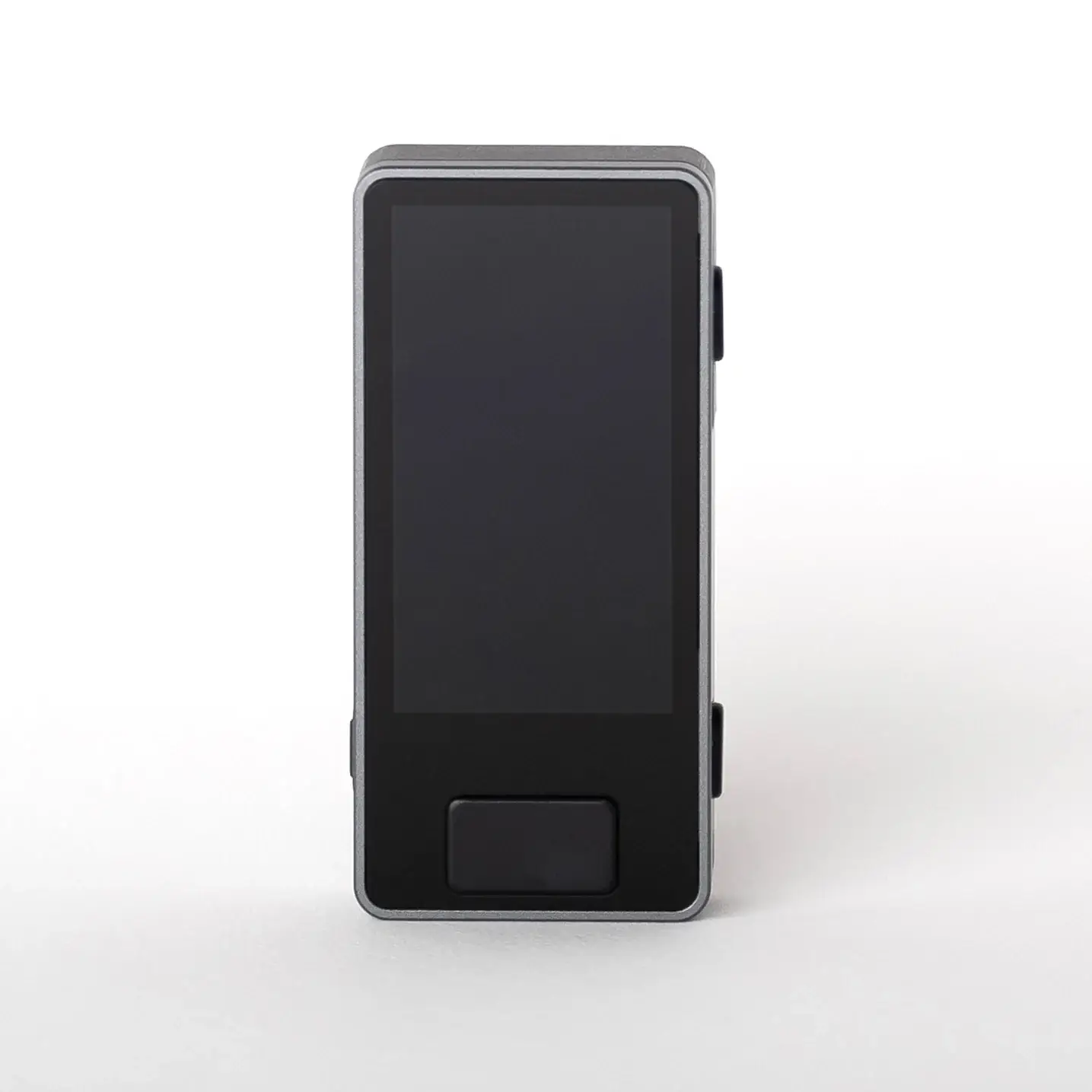
Connect the Jade Plus to your computer or a USB adapter using the included USB-C cable. The device will start up as soon as it is powered on. When setting up your Blockstream Jade Plus for the very first time, you’ll see a welcome screen on the device’s color display. Press the button to continue.
The first choice you’ll make when setting up the Blockstream Jade Plus is whether to create a new wallet or restore an existing wallet using a recovery phrase. Select “New Wallet” if this is your first hardware wallet. Select “Restore Wallet” if you previously had a BIP39-compatible wallet and are transferring it.
Step 2: Set PIN
A PIN protects your device if someone physically gets their hands on the Jade Plus. This step is required during setup. Choose a PIN that you can remember but that others won’t be able to guess. Avoid consecutive numbers or your birth year. Enter the PIN twice to confirm it.
Important: If you enter the PIN incorrectly too many times, the Jade Plus will self-wipe. This is a security feature, not a bug. After that, your recovery phrase will be the only way to restore your wallet. You’ll then need to go through the entire setup process again using the recovery phrase you wrote down.
Step 3: Create and back up recovery phrase
This is the most critical step in the entire setup process. The Jade Plus generates a recovery phrase. By default, it consists of 12 words; if you select “Advanced Setup” during creation, you’ll set it to 24 words. Those words are your wallet. Not the hardware, not the PIN, just those words. Many people rush through this step. Don’t do that.
Write down the words in the exact order they appear on the screen. Check each word twice. Keep the paper in a safe place, not next to your laptop, not in your notes app, and definitely not in an email to yourself. Anyone who has these words has access to your bitcoin. Always. No exceptions.
Next, the Jade Plus will ask you to confirm a few words. Select the correct word in the correct position. Take this verification step seriously. Once you’ve completed this part of the Blockstream Jade Plus setup, your wallet will be created and the foundation for secure self-custody will be laid.
Step 4: Setting up the Blockstream Jade Plus with the Green app
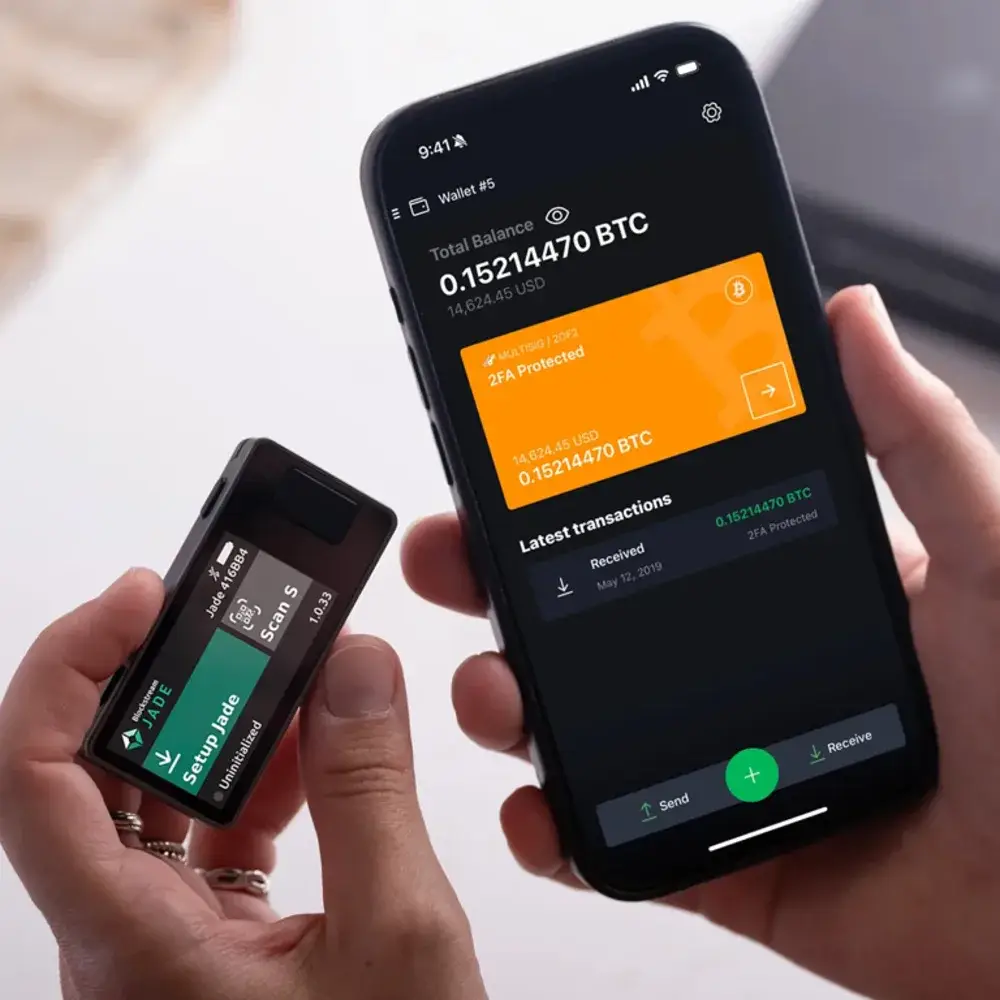
The quickest way to set up the Blockstream Jade Plus using a smartphone or computer is through the Blockstream Green app. Blockstream promotes the Green app as the recommended companion app for the Jade Plus. Download the app and open it.
- In the Green app, select "Pair a hardware wallet.".
- Select Jade as the device type.
- Connect via USB, Bluetooth, or QR code (air-gapped mode).
- The app and the Jade Plus exchange key information. You will then see your wallet address on the Jade Plus screen.
After pairing, you'll see your wallet balance. You can now receive and send bitcoin. Each transaction is approved on the Jade Plus itself, not on your phone. The Green app is free and supports iOS, Android, and desktop.
Step 5: Verify the receiving address on the device
This is the step that many beginners skip when setting up the Blockstream Jade Plus, but it really matters. Before you send bitcoin to your new wallet, generate a receiving address in the Green app or Sparrow Wallet, and verify that address on the Jade Plus screen. Not just on your computer, but also on the hardware wallet itself.
A hacked computer or phone may display a fake address. The Jade Plus always displays the real address generated by the device itself. Does it match what your app shows? If so, you're ready to receive securely.
How do I set up USB or air-gapped QR mode on the Blockstream Jade Plus?
The Jade Plus supports three connection modes: USB, Bluetooth (for iOS and Android), and air-gapped QR mode. This is a deliberate choice when setting up the Blockstream Jade Plus, and you can adjust it later if your needs change.
USB mode This is the simplest method. You connect the Jade Plus to your computer; the Green app or Sparrow Wallet recognizes the device, and communication takes place via the cable. No extra steps. Suitable for beginners setting up the Blockstream Jade Plus for the first time.
Air-gapped QR mode takes security a step further. The Jade Plus never connects to a computer or phone via a cable or wireless connection. When setting up the Blockstream Jade Plus via QR mode, you use the device’s built-in camera to scan transaction QR codes that appear on your screen. The private keys never leave the device, not even digitally.
USB is secure enough for most users. QR mode provides extra security if you store larger amounts and do not want to accept any digital connection path.
Setting Up the Blockstream Jade Plus with Sparrow Wallet
Sparrow Wallet is an advanced Bitcoin-only desktop wallet for Windows, macOS, and Linux. Setting up the Blockstream Jade Plus via Sparrow is done via USB or QR code, just like with the Green app. The reason experienced users choose to set up the Blockstream Jade Plus via Sparrow is the level of control it offers: setting your own fees, coin control, and full PSBT support. You can download Sparrow from the official website. sparrowwallet.com.
In Sparrow, go to File, select New Wallet, name the wallet, select Connected hardware wallet, and choose the Jade Plus. Sparrow will then communicate directly with the device. For beginners, the Green app is a better starting point. Sparrow is the next step if you want more control.
Optional: passphrase as an extra layer of security
The Jade Plus supports an optional BIP39 passphrase, also known as the 25th word. This is an additional password used in conjunction with your recovery phrase. Any other passphrase creates a completely different wallet, which can be useful as an extra layer of protection.
If you're just getting started with setting up the Blockstream Jade Plus, we recommend skipping this step for now. Make sure you have the basics in order: recovery phrase stored securely, PIN set, wallet linked. You can add the passphrase later when you’re ready. Losing your passphrase is just as disastrous as losing your recovery phrase.
How the Jade Plus Protects Your Private Keys
A question you’re likely to ask when setting up the Blockstream Jade Plus: How exactly does the security work? The Jade Plus uses a model that Blockstream calls the Blind Oracle. There is no traditional secure element inside the device. Instead, the PIN security works in conjunction with an external server: the Jade Plus and that server each know only their own part of the encrypted key. The Oracle service is open source and can be self-hosted.
During setup, you won't see this model directly in the interface, but it works in the background. The firmware for the Jade Plus is completely open source, including the hardware designs. That’s a level of transparency that proprietary chips can’t offer. Is it perfect? Nothing is perfect. Is it properly documented? Yes. You can find more details on the official Blockstream Jade product page and in the Blockstream Jade Help Documentation.
Common Mistakes When Setting Up the Blockstream Jade Plus
All of these mistakes can be avoided. Anyone who takes setting up the Blockstream Jade Plus seriously should read this section carefully. After guiding Bitcoin beginners, you’ll see the same patterns repeat themselves time and time again.
Store recovery phrase digitally. The biggest mistake. Your phone is not a vault. A screenshot of your recovery phrase in the cloud is an open door. Write it down on paper, keep it safe.
PIN forgotten. Choose a PIN you will remember yourself. Do not write it down on the same paper as your recovery phrase. After too many incorrect attempts, the device will wipe itself.
Do not verify address on device. Always verify a recipient's address on the Jade Plus screen, not just on your computer or phone. A compromised computer may display a fake address.
Skip recovery phrase verification. The Jade Plus asks you to confirm your entries. Take this step seriously and check your backup on paper before continuing.
Buy Jade Plus and get started
Setting up the Blockstream Jade Plus starts with having the device. BitcoinStuffStore provides the Blockstream Jade Plus Grey Directly in the Netherlands. Bitcoin only, no crypto nonsense, no compromises.
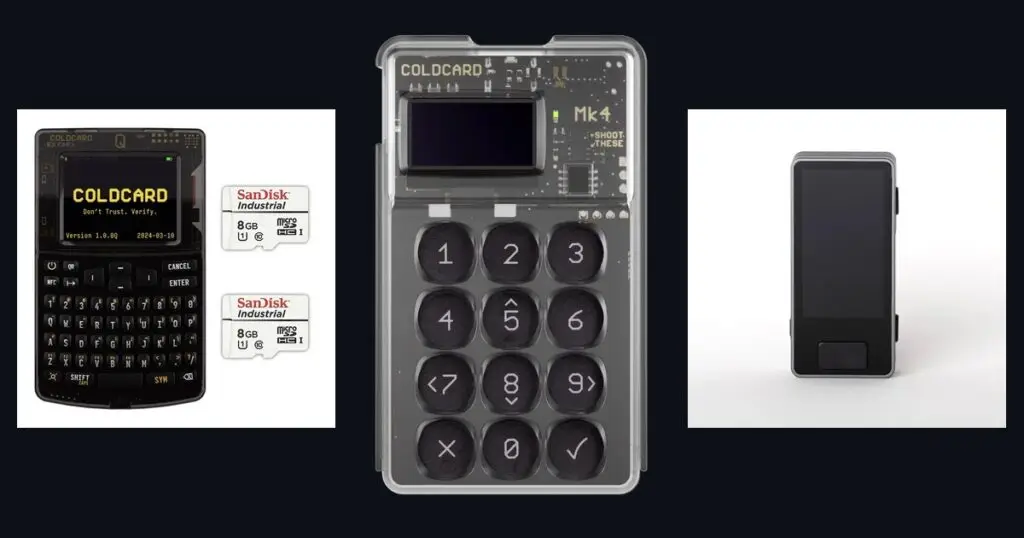
Not sure if the Jade Plus is the right choice for you? Then read the comparison guide Jade Plus vs. Coldcard Q for a fair comparison. And check all hardware wallets that we conduct for a complete overview.
Then you’ll have a self-custodial Bitcoin wallet. Not your bank, not an exchange, you decide who has access. 1 bitcoin remains 1 bitcoin.